This article explains how to send a rental verification request.
1. Log in to your Trustii account via this URL: app.trustii.co.
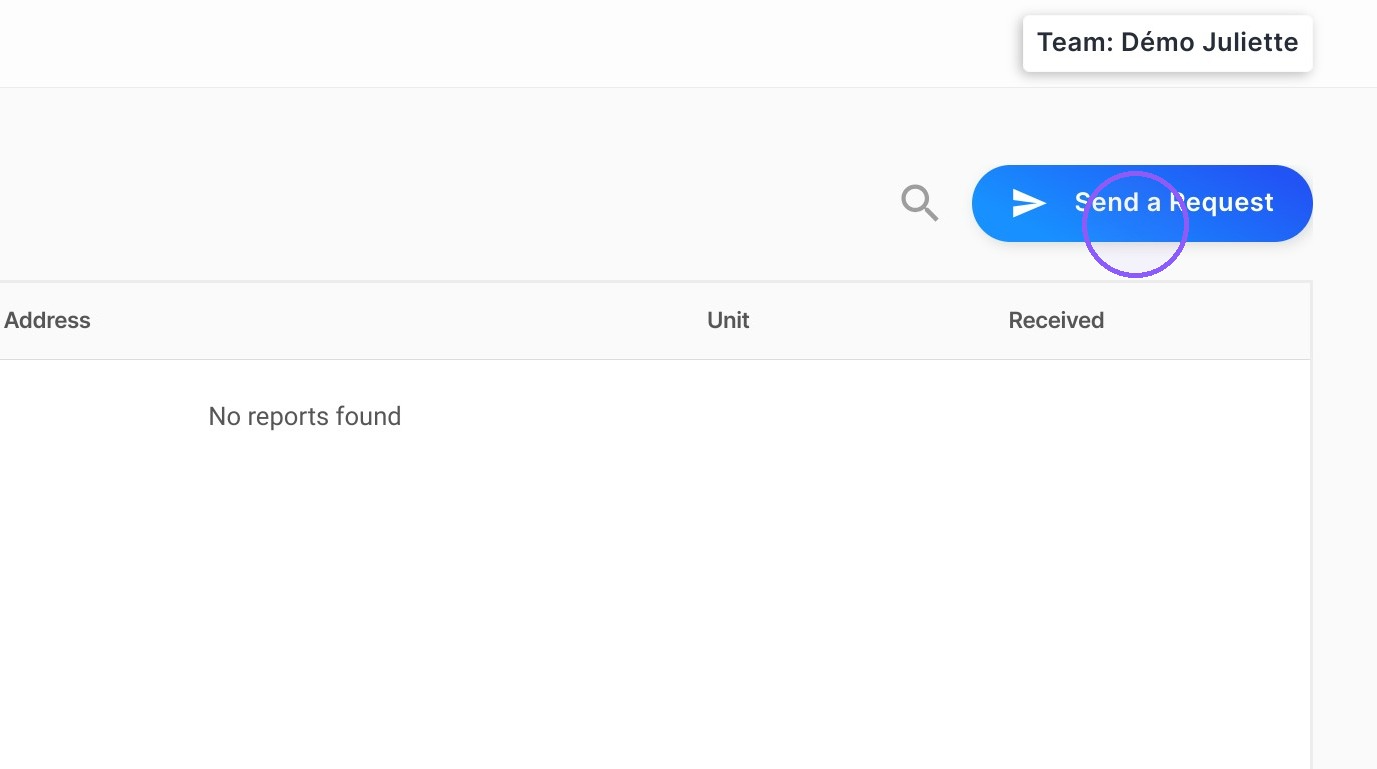
2. Click on the blue Send a Request button located at the top right of the screen.
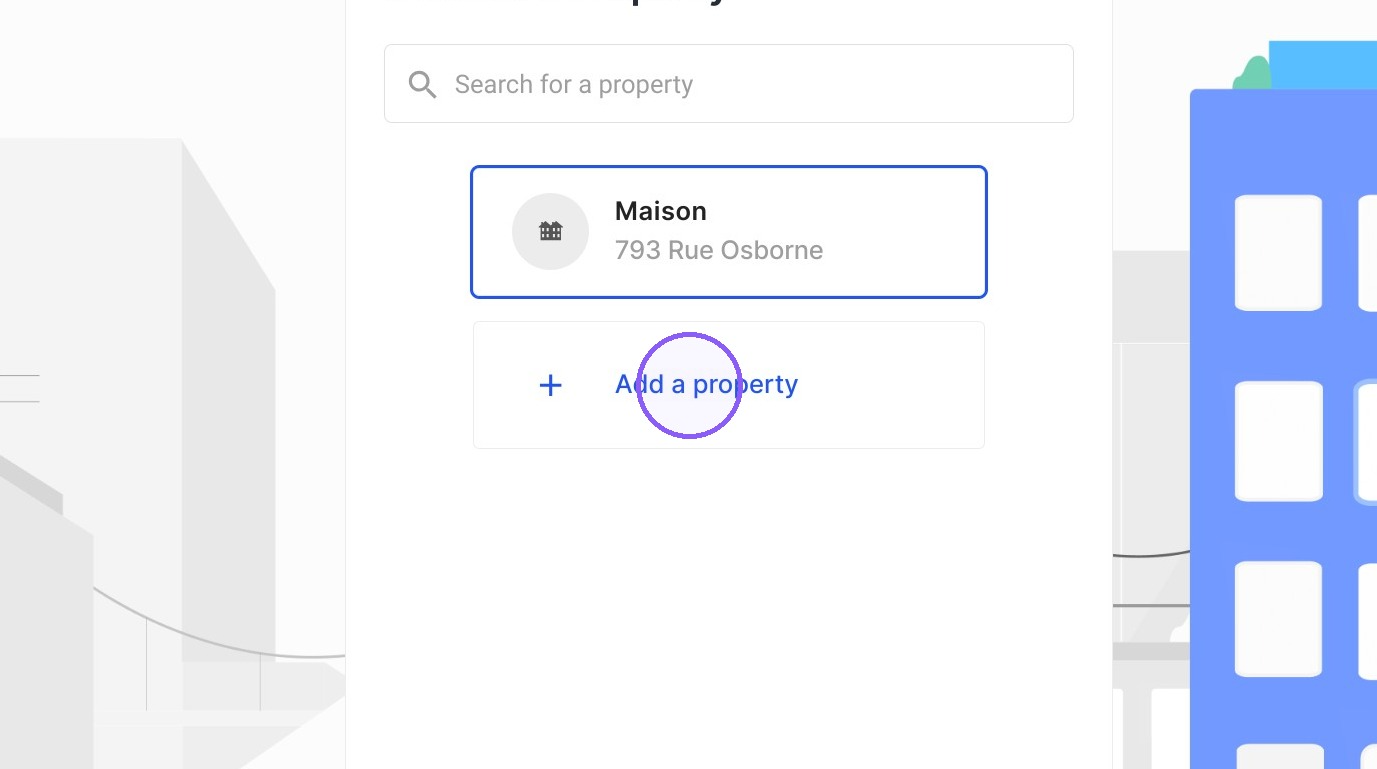
3. Click Add a property to add a new property, or select an existing one.
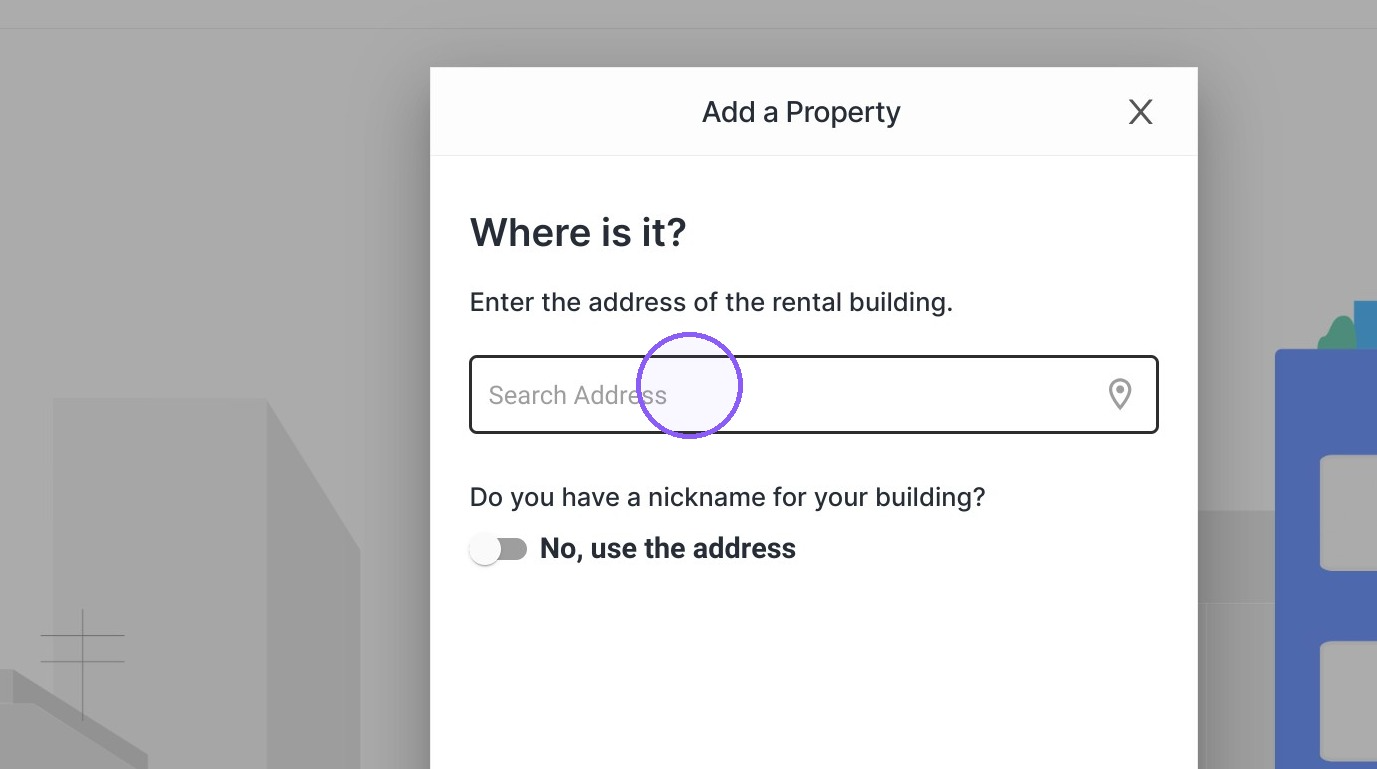
4. If you're adding a new property, enter the address in the search bar.
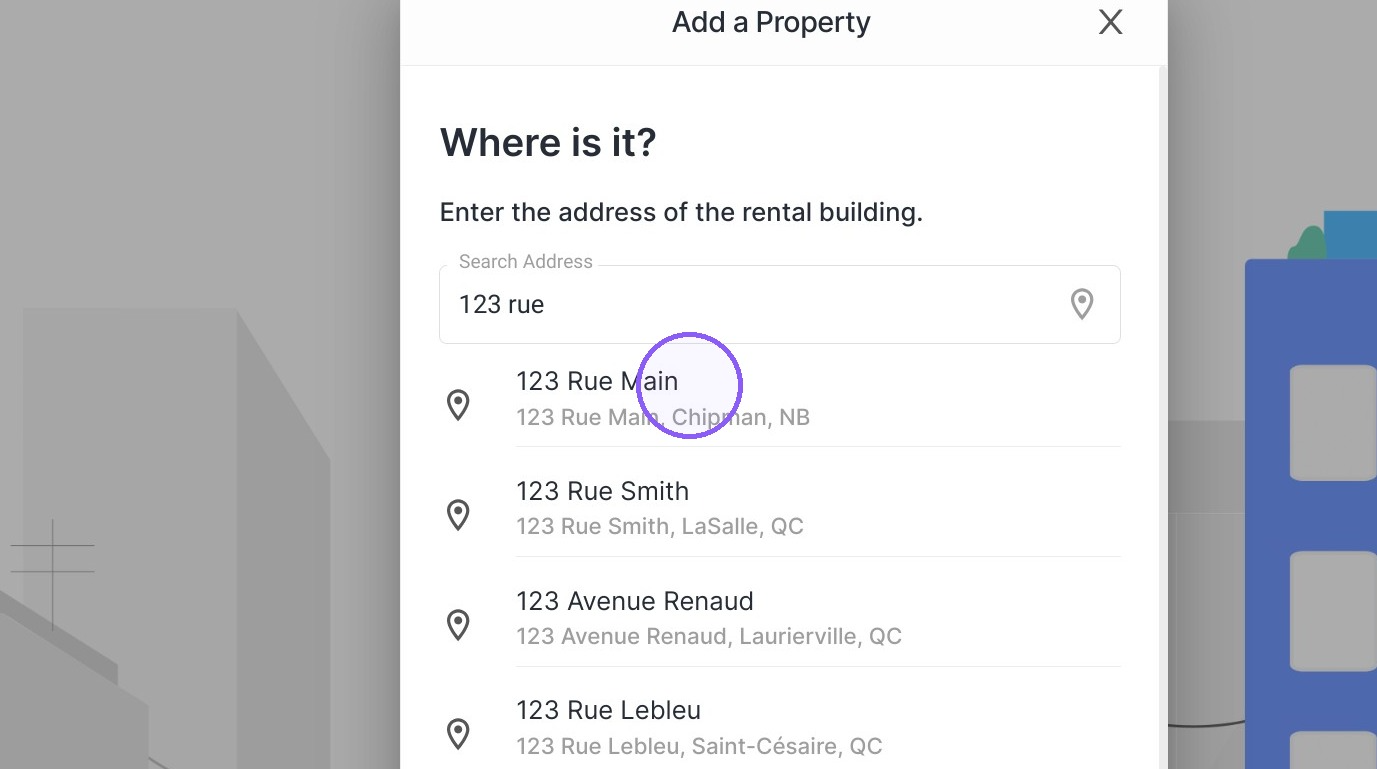
5. Click on the full address of your property.
6. Follow the steps to complete the property information.
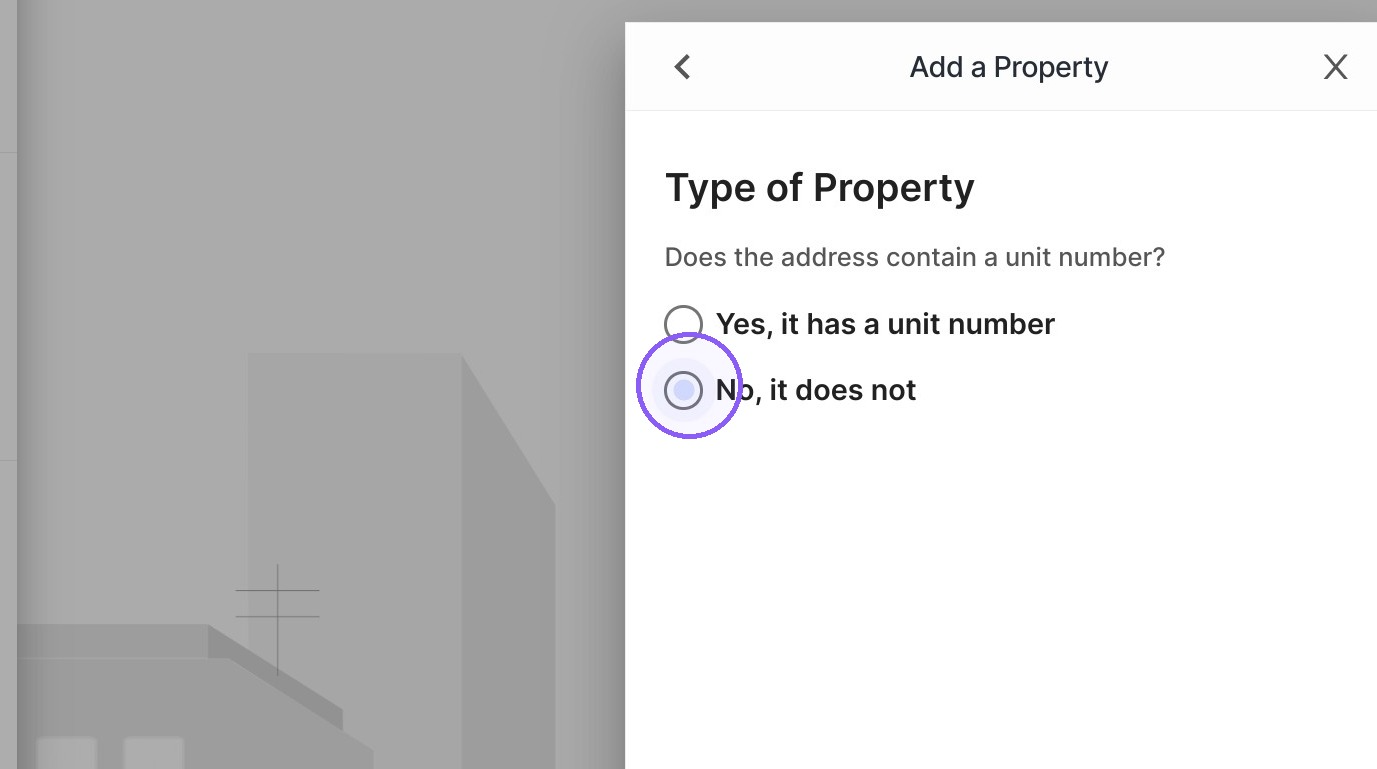
7. Once you've completed all the property information, click Next.
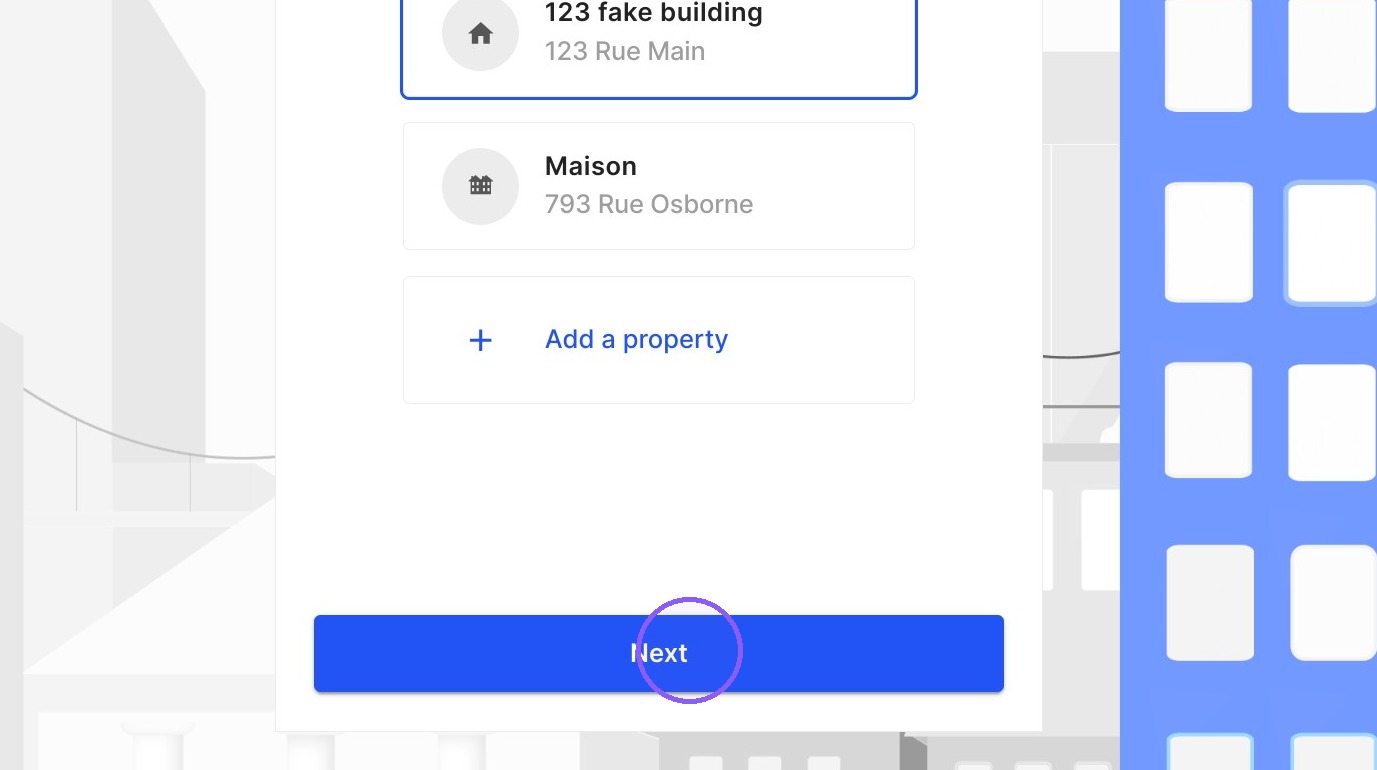
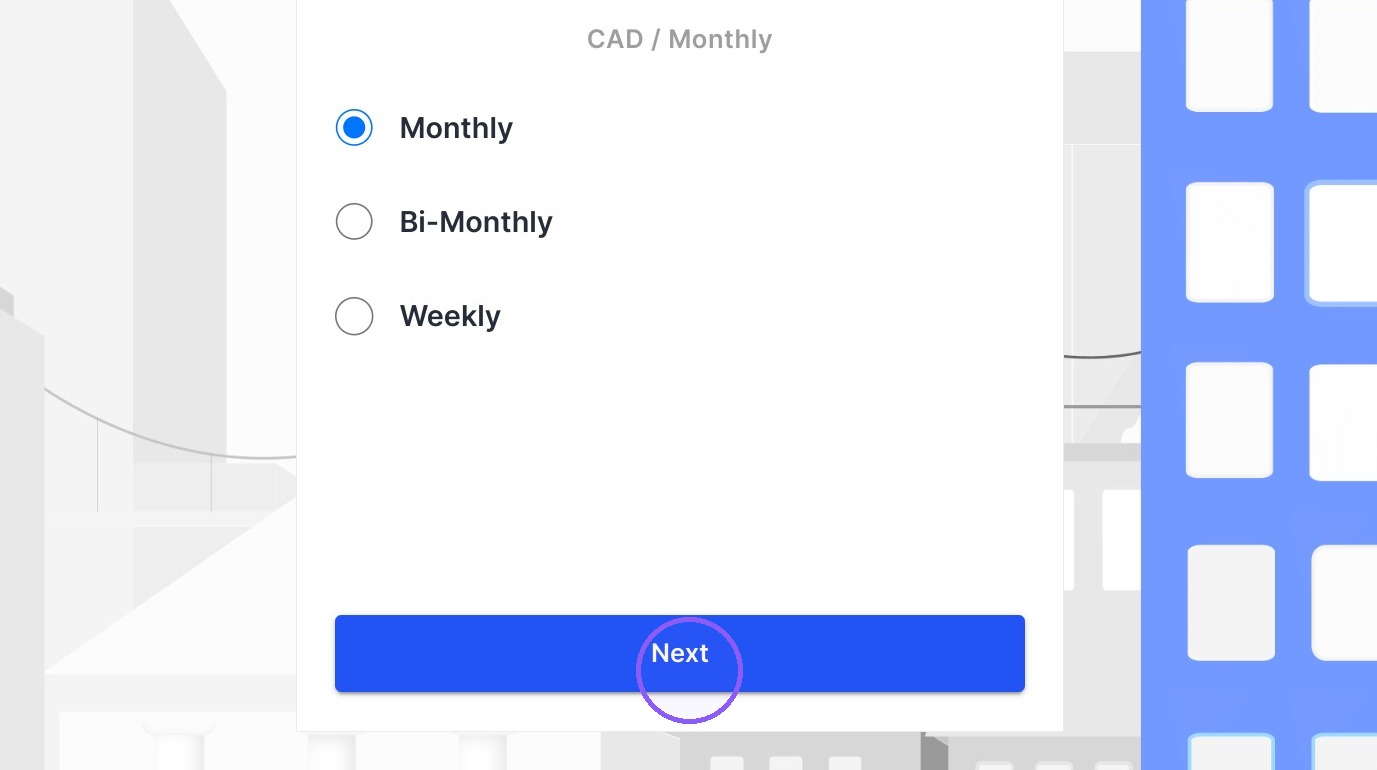
8. Confirm the rent and frequency, and click Next.
9. Enter the applicant's information.
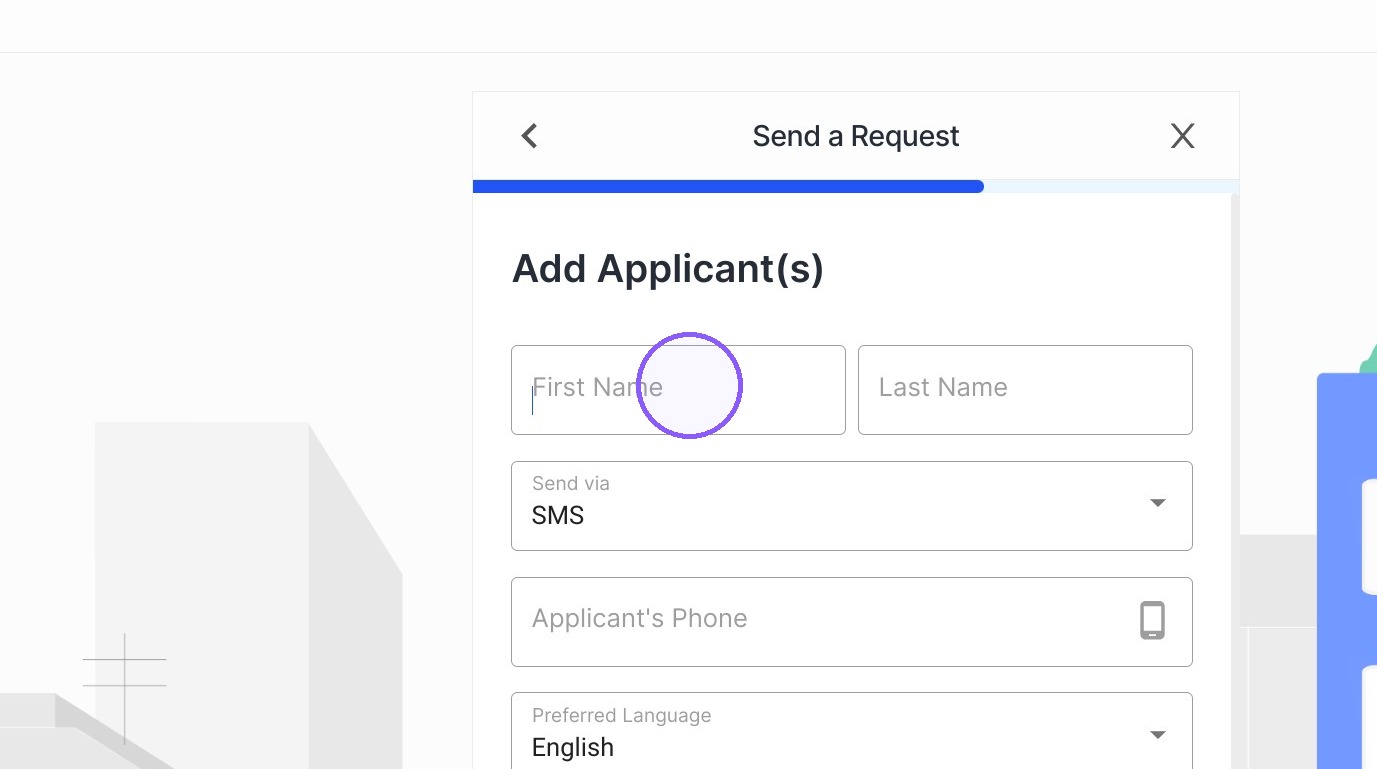
10. You can add an Endorser or Roommate to the request by clicking on the related button.
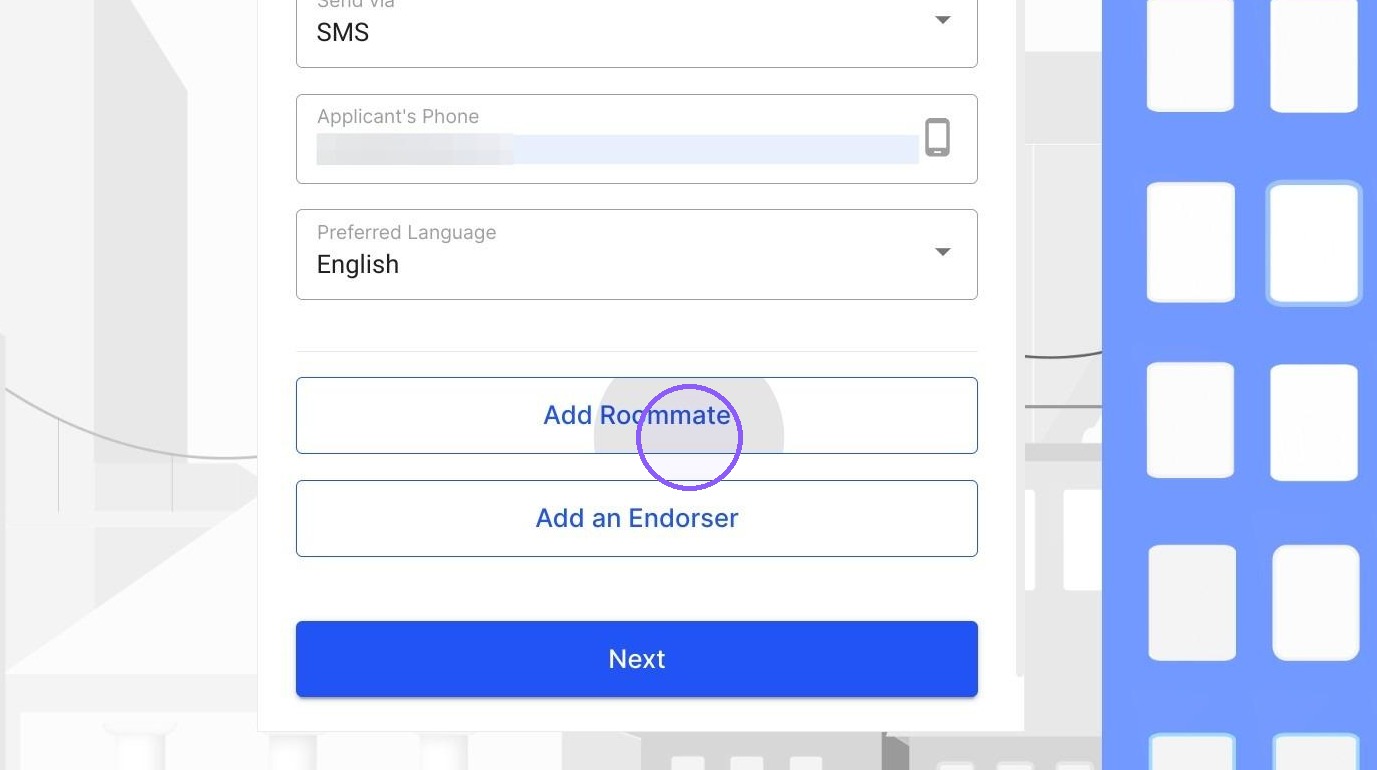
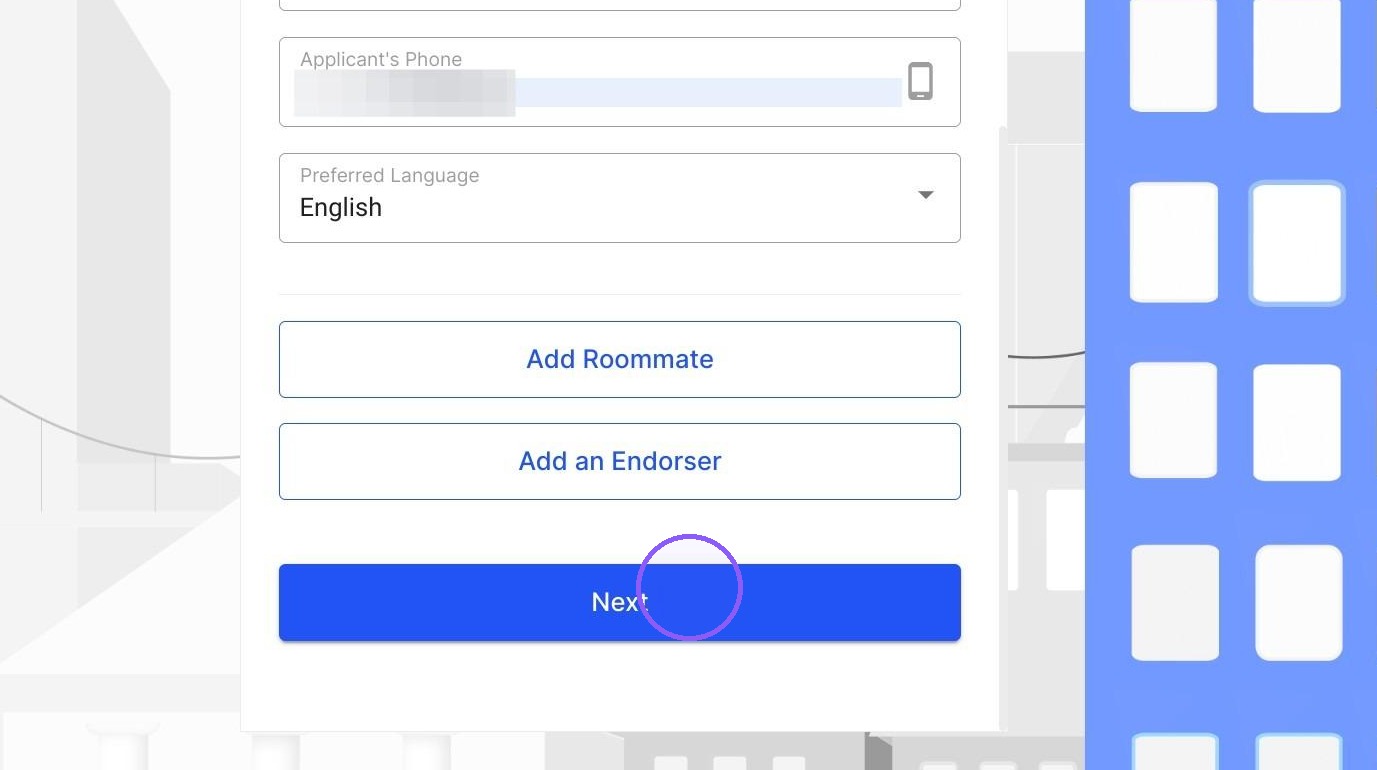
11. Once you've added all the roommates and endorsers, click Next.
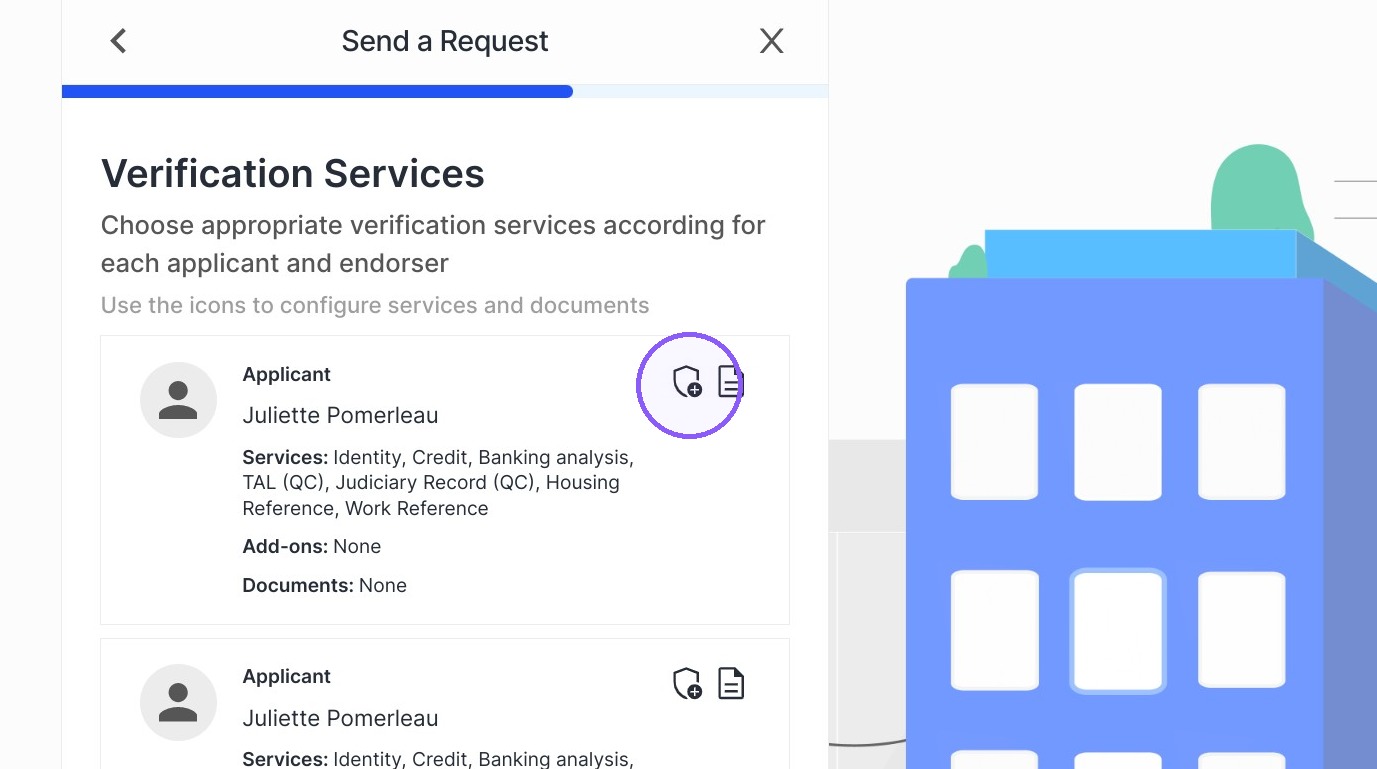
12. Click the shield icon to add or remove services from your request. The services you've selected by default will automatically apply to all roommates and endorsers. You'll need to click the shield icon for each applicant individually to edit their services.
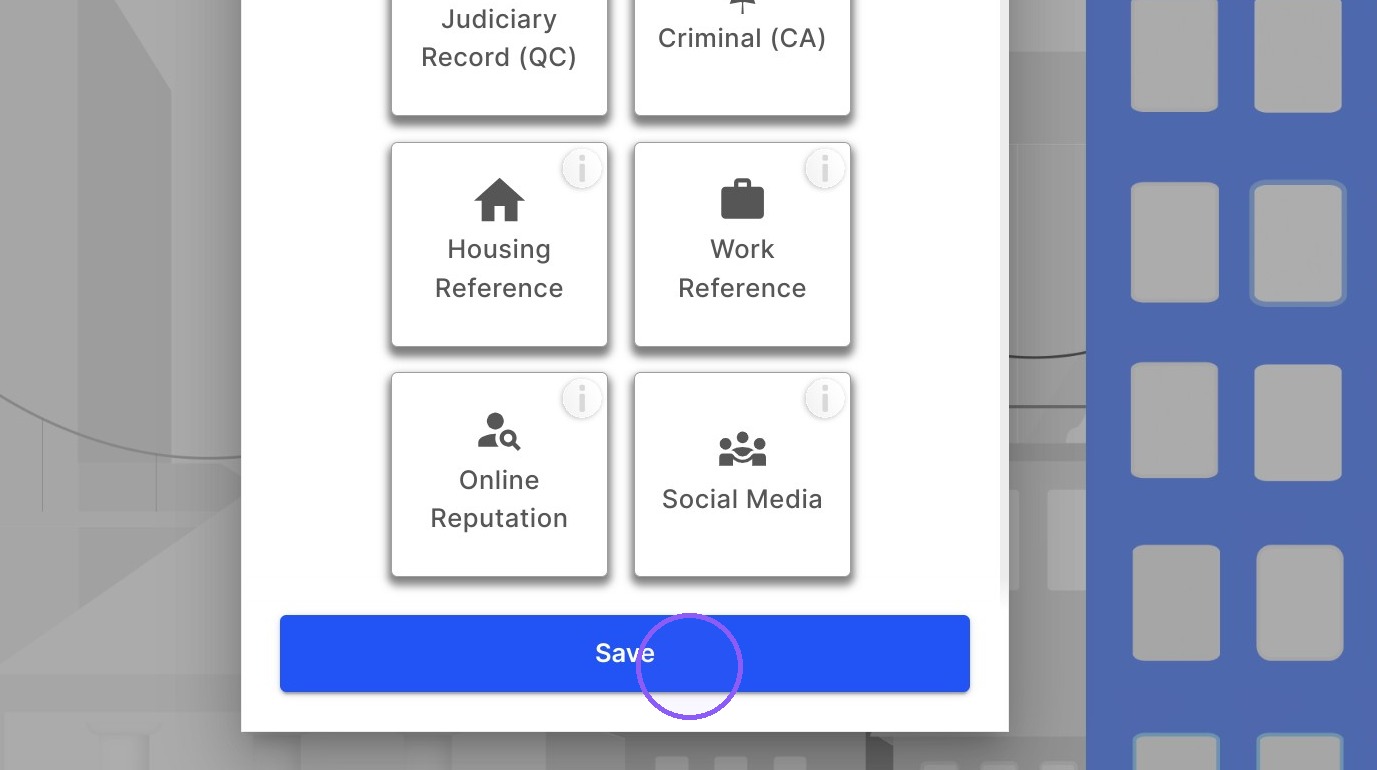
13. Click Save once you've confirmed the services you want to include for that applicant.
14. Once all the services for each applicants are confirmed, click Next.
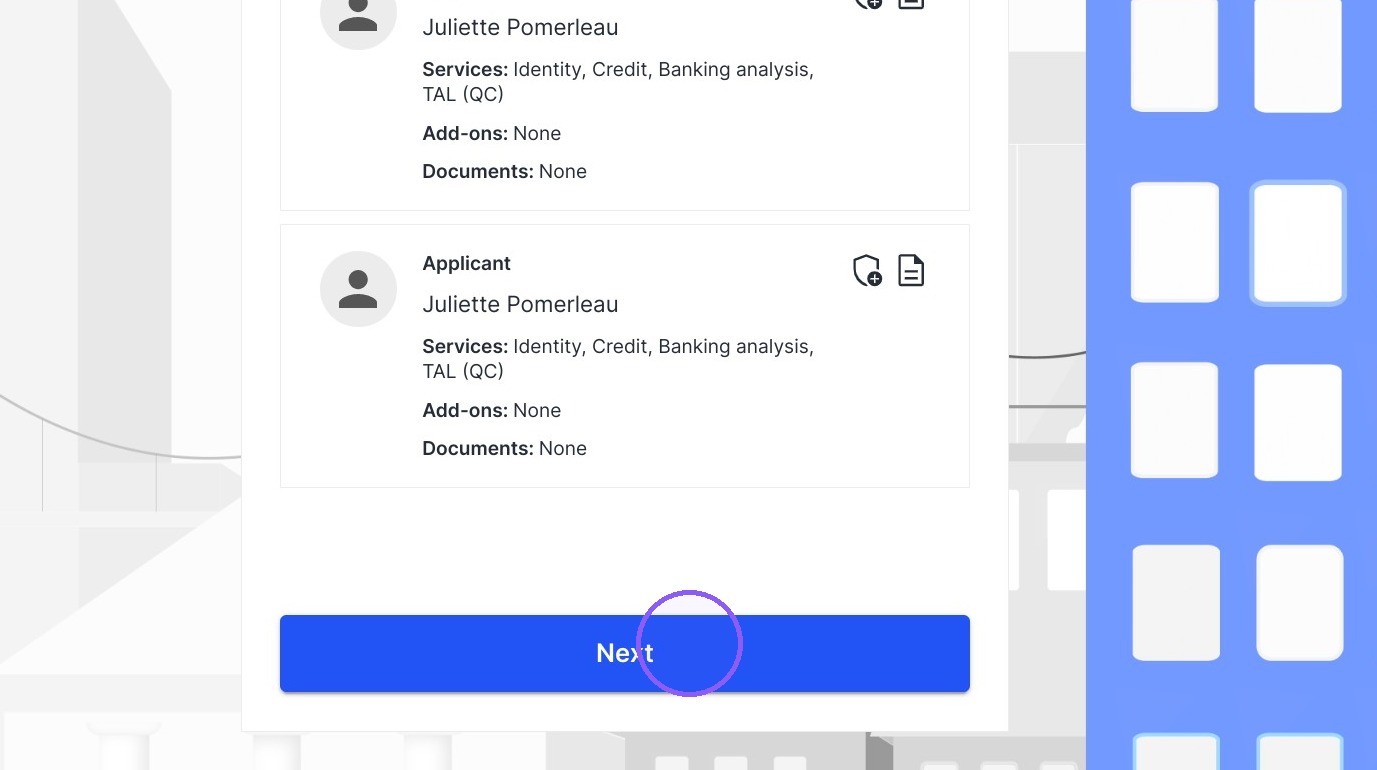
15. Click here if you want the applicant to handle the payment for the request.
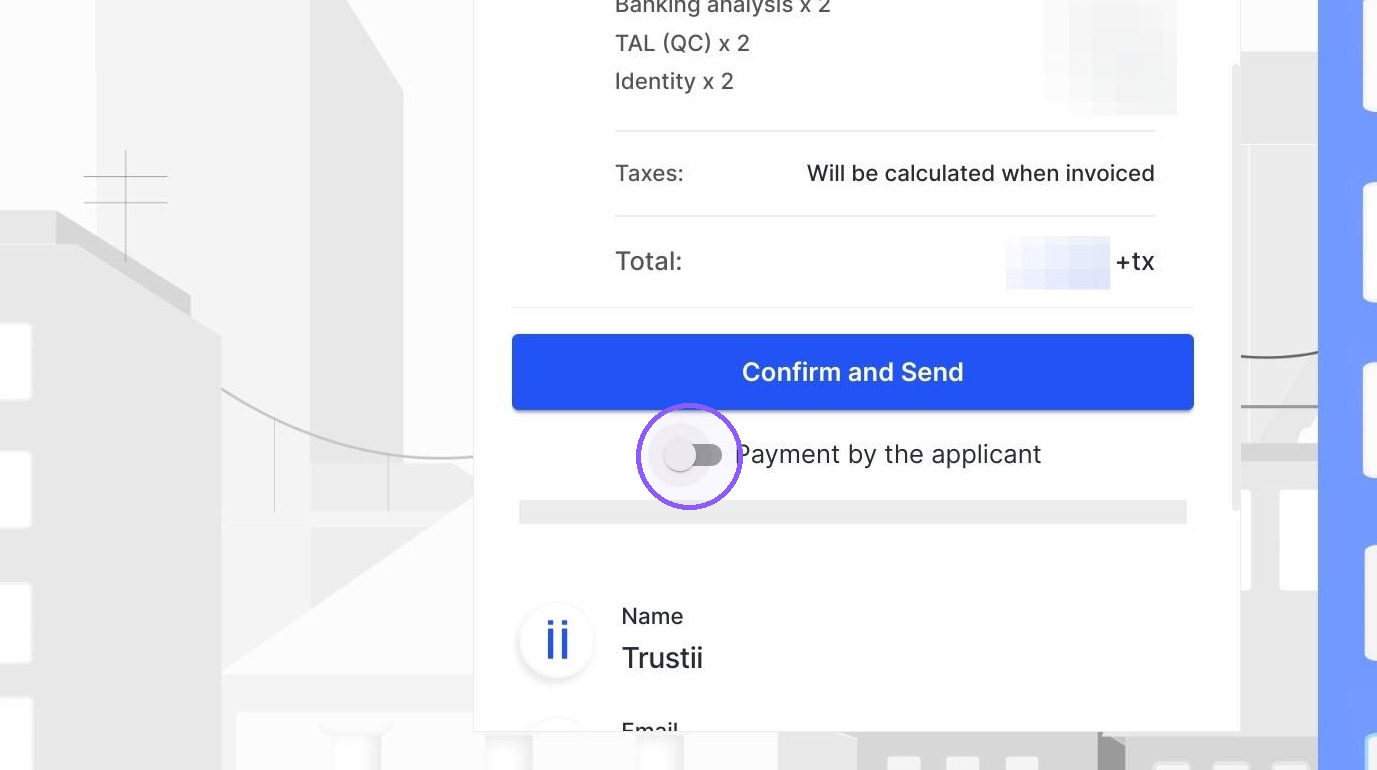
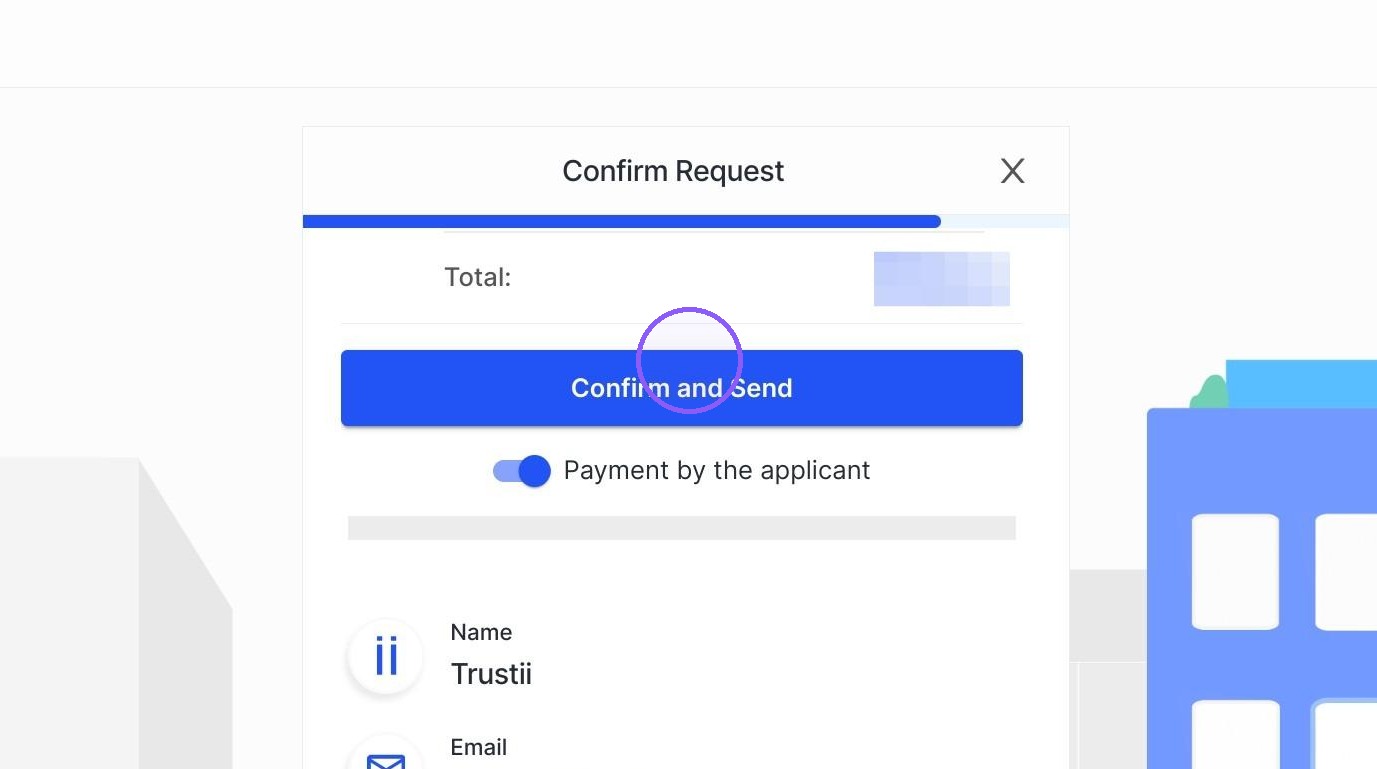
16. Click Confirm and Send to send your request.
Was this article helpful?
That’s Great!
Thank you for your feedback
Sorry! We couldn't be helpful
Thank you for your feedback
Feedback sent
We appreciate your effort and will try to fix the article