This article covers how to prepare a document for upload in Horizon for employee review and signature.
Accepted document format for upload: PDF
TABLE OF CONTENTS
How to create a document for signature
Your dedicated Customer Success Manager can help your team upload and set up documents that require signature.
Before uploading a document for signature in Horizon, we recommend the following to ensure consistency:
Plan your fields
1. Decide which fields you'd like to include in your document. The available fields include:
Note: Every document must include at least one Signature field. | Field | Purpose |
| Signature* | Captures a full signature and timestamp from the recipient. |
| Initials | Captures a short-form signature, typically used to acknowledge individual pages or clauses. |
| Name | Auto-fills or collects the recipient's full name. |
| Auto-fills or collects the recipient's email address. | |
| Date | Captures or auto-fills the date the document is completed or signed. |
| Text | Allows short written responses. |
| Number | Restricts input to numbers only. |
| Radio | Presents a set of options where only one can be selected. |
| Checkbox | Allows the recipient to select or confirm an option. |
| Dropdown | A selectable list of pre-defined options. |
*Required
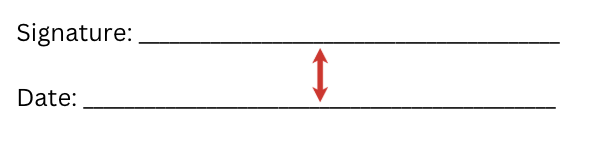
2. Leave blank space where each field should go, with enough spacing between fields.
Consider the type of document that is being signed and its recurrence
For a template that will be reused, avoid including information that changes often, such as a specific person's contact details. Use generic contact information instead, so you don't need to upload a new version every few months.
For documents that serve a similar purpose (e.g., policies, NDAs), use a consistent template and field layout. This gives the staff who need to sign a predictable, clean, and consistent experience each time.
Tips before you save and send
Save the document as a PDF and send it to your Customer Success Manager for upload. Keep the following in mind:
- Finalize the content before sending. Once a document is uploaded and set up as a service, changes require a new version to be uploaded.
- If you have multiple related documents to send together (e.g., a policy and its acknowledgement form), send them to your Customer Success Manager at the same time.
- If the documents need to be signed in a specific order, note the intended order when you send them.
- Use a consistent naming convention (e.g., document name plus effective date) to help track versions, especially for recurring or annual documents.
- Use a native, text-based PDF rather than a scanned image to ensure clarity.
- Do not password-protect the PDF.
Was this article helpful?
That’s Great!
Thank you for your feedback
Sorry! We couldn't be helpful
Thank you for your feedback
Feedback sent
We appreciate your effort and will try to fix the article