This article explains how to review, complete, and sign a document sent to you through Horizon.
Your employer may send you documents to sign, such as policy acknowledgements, consent forms, or onboarding documents. You do not need a Horizon account to sign a document.
TABLE OF CONTENTS
Open the signing request
When your employer sends you a document to sign, you’ll receive an email from Trustii Horizon (noreply@trustii.co) with a secure link to the document.
1. Open the email and click Sign the document.
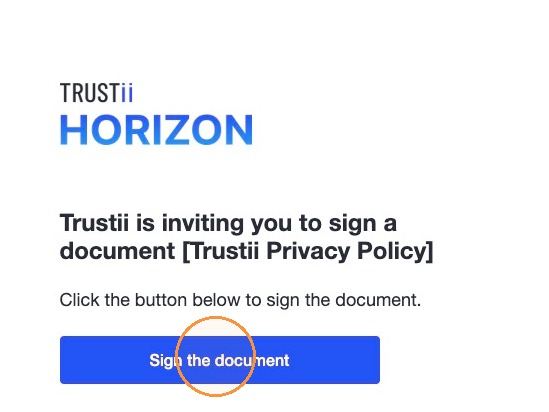
Note: If your employer has your phone number on file, you’ll also receive a text message from Trustii with the same link. You can sign the document on a mobile device or a computer.
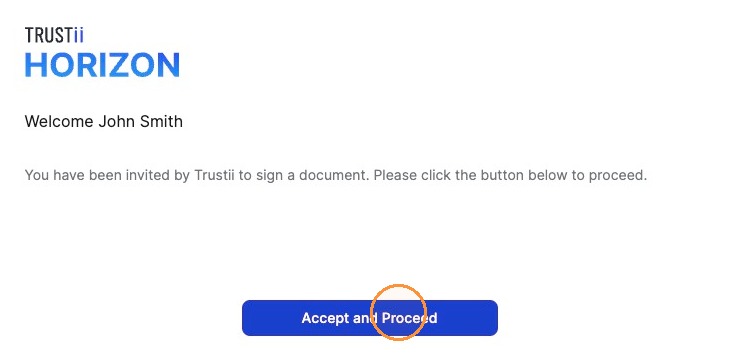
2. Click Accept and Proceed.
Complete and sign the document
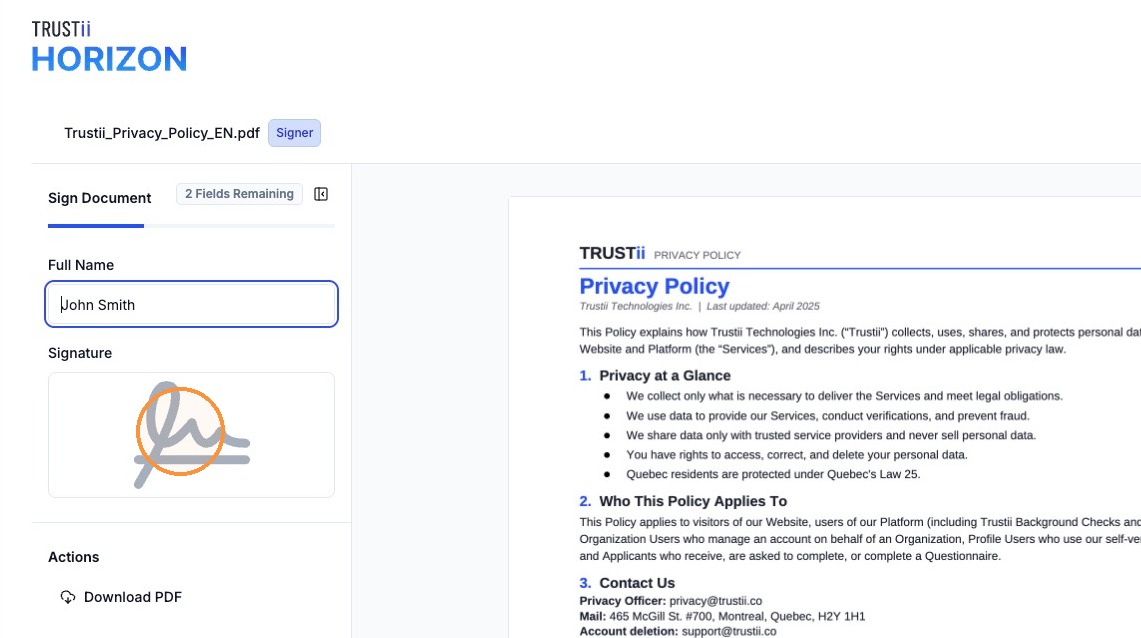
The document highlights each field you need to fill in. Any information Horizon already has, such as your name, is filled in for you.
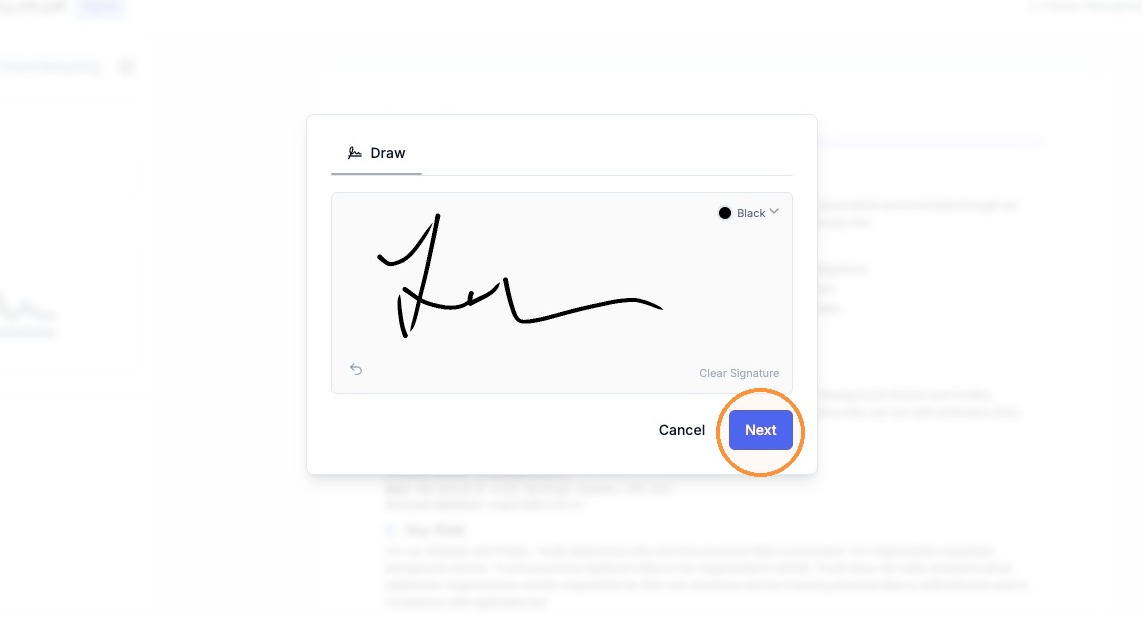
3. Click the Signature field and draw your signature.
4. Click Next.
5. Read the document in full. As you scroll, click each highlighted field and complete it.
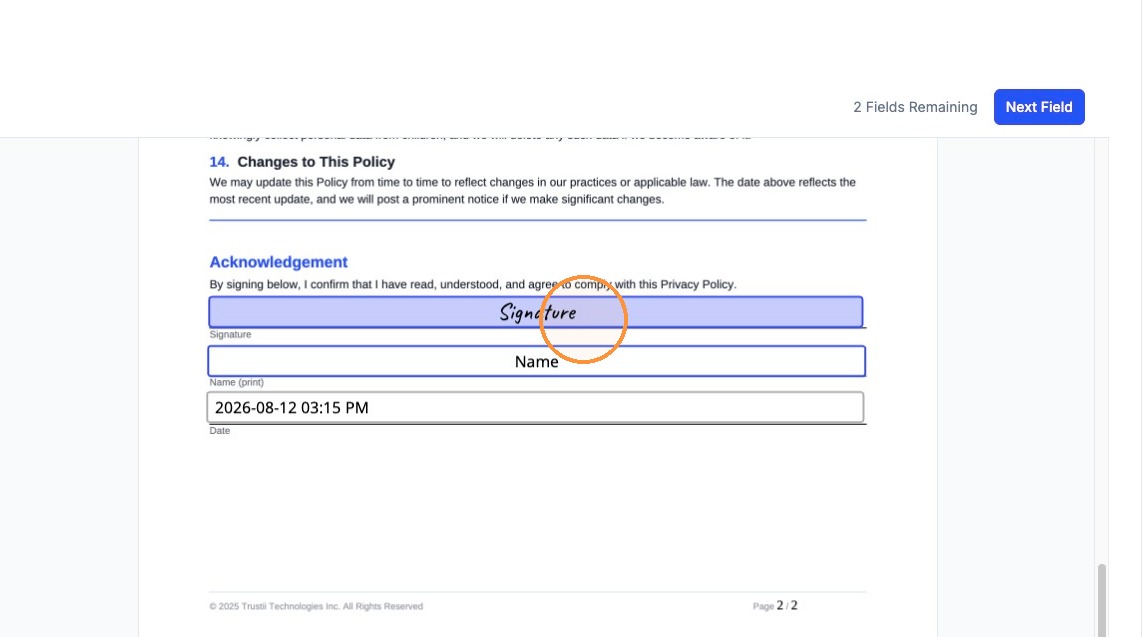
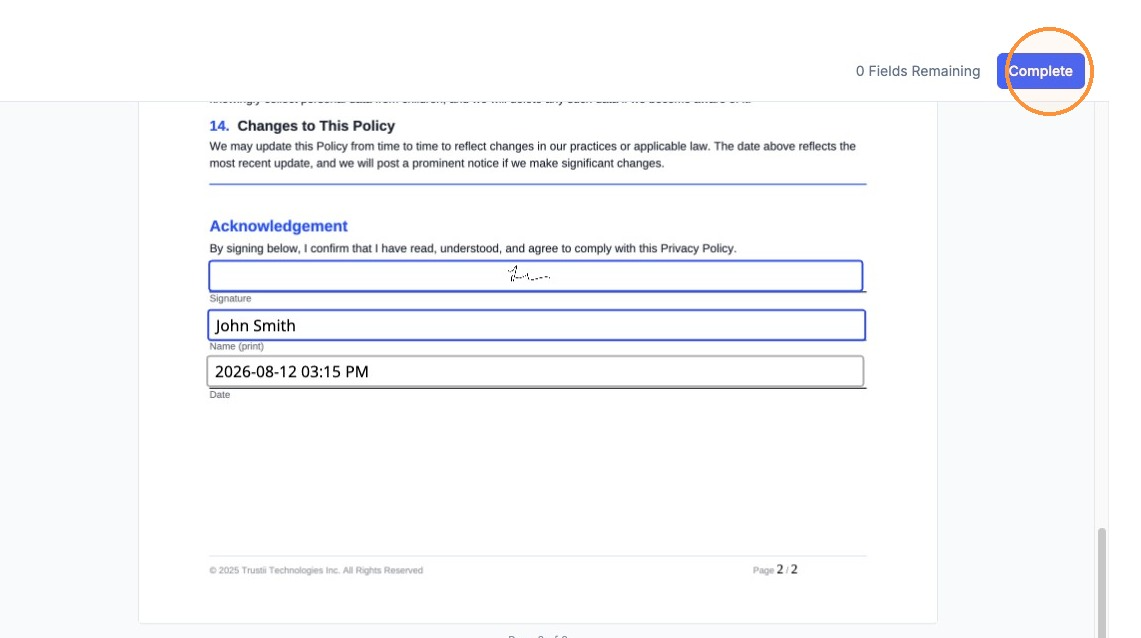
6. When all required fields are complete, the Complete button becomes available. Click Complete.
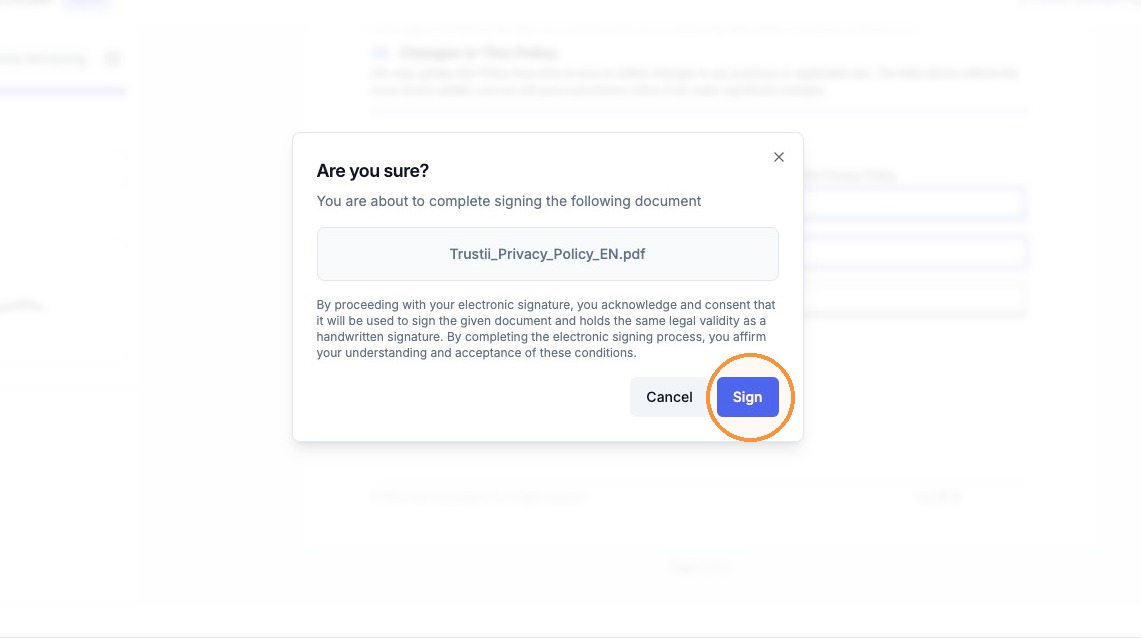
7. Click Sign to confirm.
Once your document is submitted, a confirmation message appears. No further action is required.
Frequently Asked Questions (FAQs)
Who should I contact if I have a problem signing the document?
For technical issues, email support@trustii.co. For questions about the document itself, contact your supervisor.
Can I sign the document on a computer or a mobile device?
Yes. You can sign the document on a computer, phone, or tablet. If you received a text message from Trustii, you can open the link directly on your phone.
Was this article helpful?
That’s Great!
Thank you for your feedback
Sorry! We couldn't be helpful
Thank you for your feedback
Feedback sent
We appreciate your effort and will try to fix the article