This article covers how to create your Horizon account, log in and out, and reset your password.
TABLE OF CONTENTS
Create your Horizon account
When your Horizon account is ready, you'll receive an invitation email to join the platform from Trustii (noreply@trustii.co). Accepting this invitation grants you access to your organization's Horizon account.
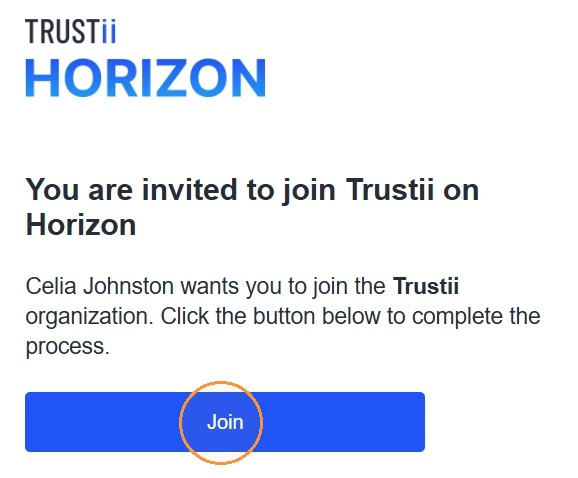
1. Click Join in the invitation email.
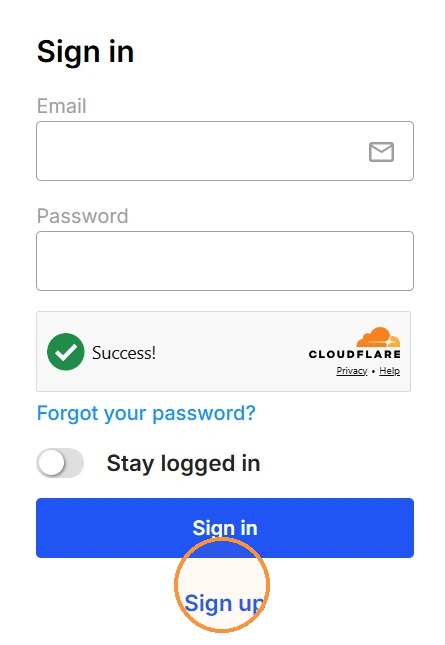
2. Select Sign Up at the bottom of the page.
3. Enter your invited email address and click Continue. A verification code will be sent to that address.
4. Check your inbox for the code, enter it, and click Continue.
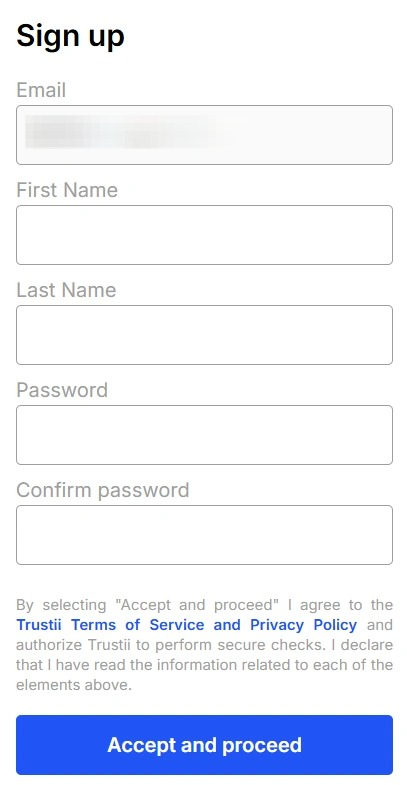
5. Enter your first name, last name, and a password, then click Accept and Proceed. Your password must be between 8 and 16 characters.
6. Enter your phone number and click Send Code. A text from Trustii will arrive shortly.
Note: This number is used for multi-factor authentication (MFA), an added layer of security that verifies your identity each time you log in.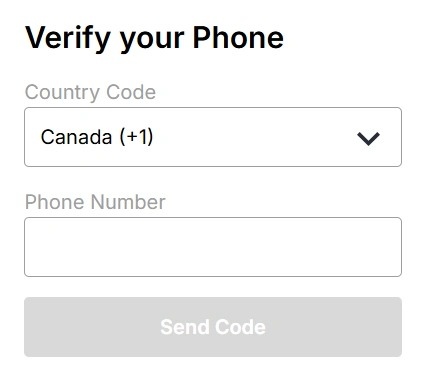
7. Enter the code and click Continue.
Your account is now active and you'll be taken to your organization's Horizon account.
Log in to Horizon
You can log in to Horizon at any time at horizon.trustii.co.
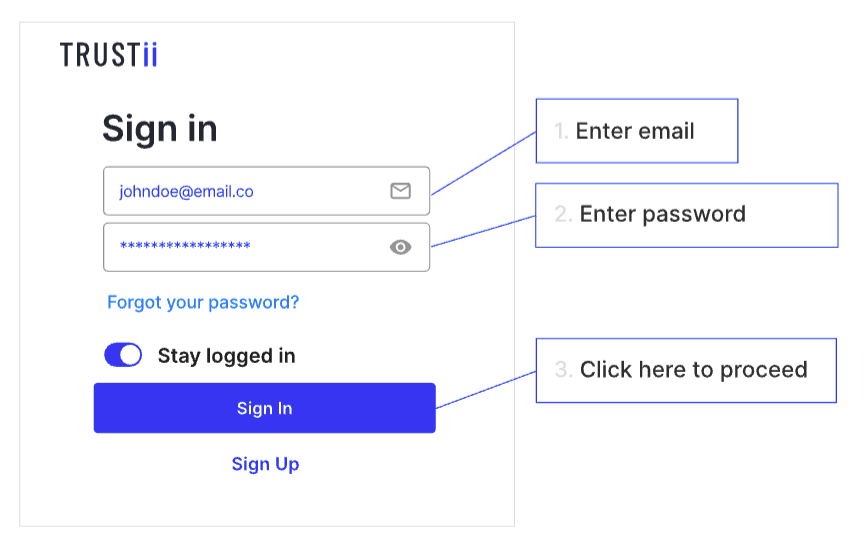
1. Enter your email address and password and click Continue.
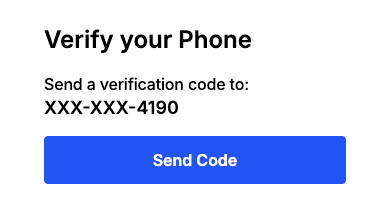
2. Verify the last four digits of your phone number and click Send Code.
3. Check your phone for a verification code from Trustii, enter it, and click Verify my phone number.
You'll be taken to your organization's Horizon dashboard.
Log out of Horizon
1. Click your initials in the bottom left corner of the screen.
2. Click Log out.
Reset your password
To reset your password, email your Customer Success Manager.
Was this article helpful?
That’s Great!
Thank you for your feedback
Sorry! We couldn't be helpful
Thank you for your feedback
Feedback sent
We appreciate your effort and will try to fix the article