When a driving record verification is required, you'll receive an email inviting you to submit it. Here's how to complete this request.
TABLE OF CONTENTS
Start your Verification
1. You'll receive an email from Trustii Horizon (noreply@trustii.co) inviting you to complete a verification. Open this email and click Begin my Verification.
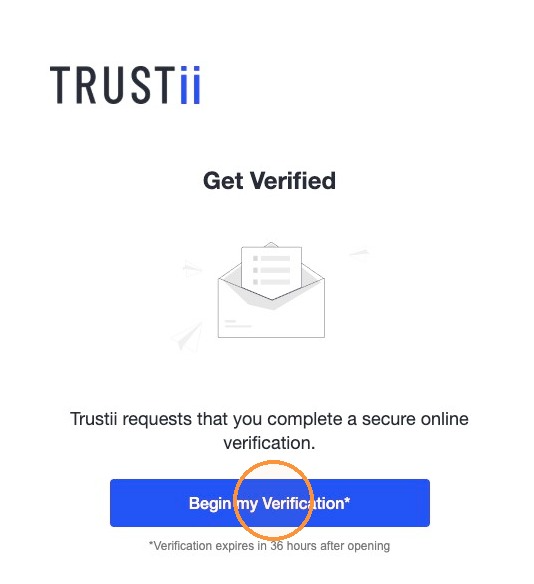
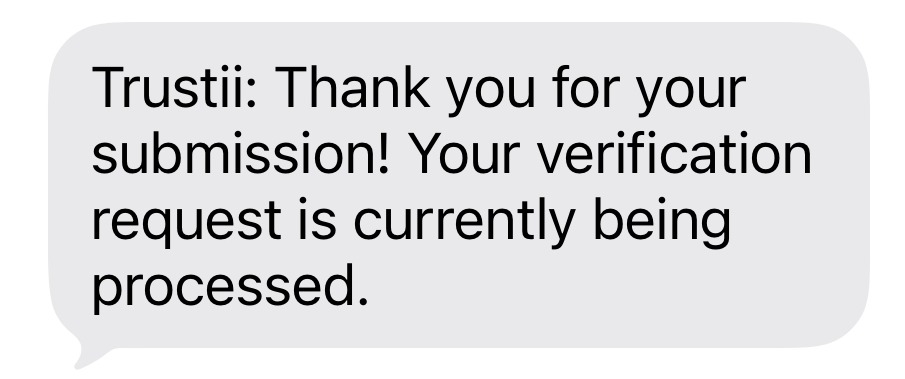
If your phone number has been provided, you'll also receive a text message from Trustii. This process can be completed on desktop or mobile.
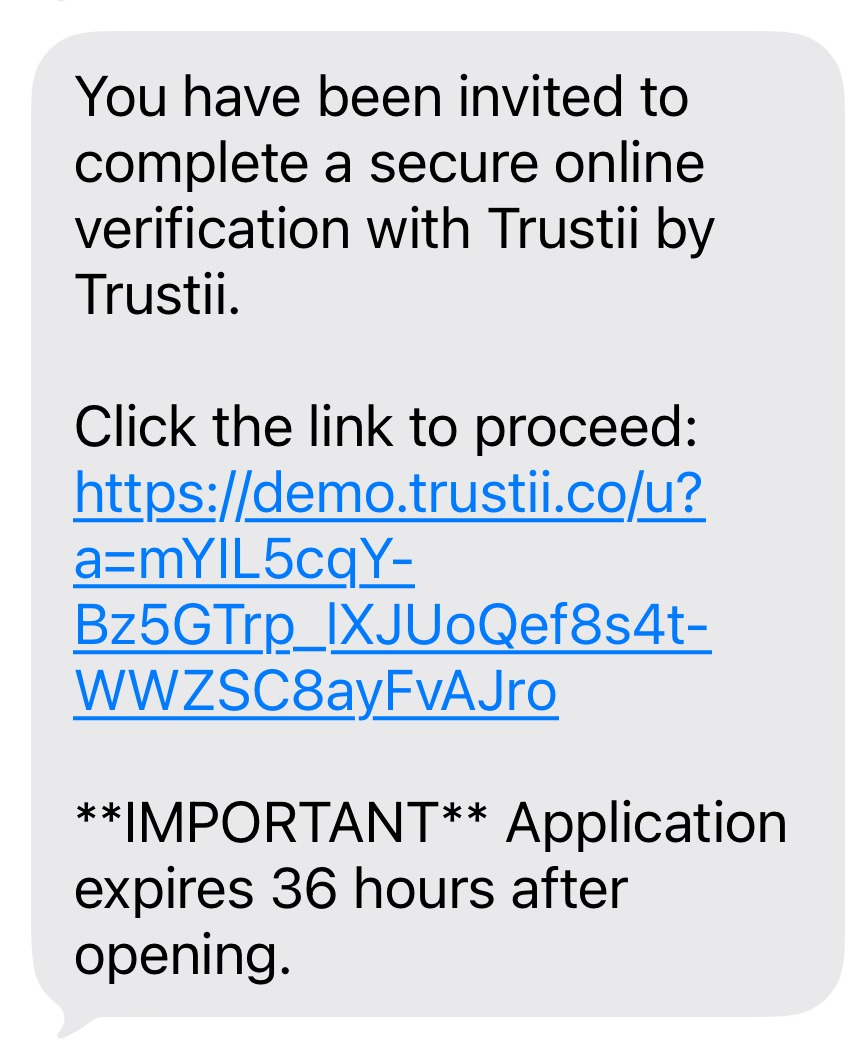
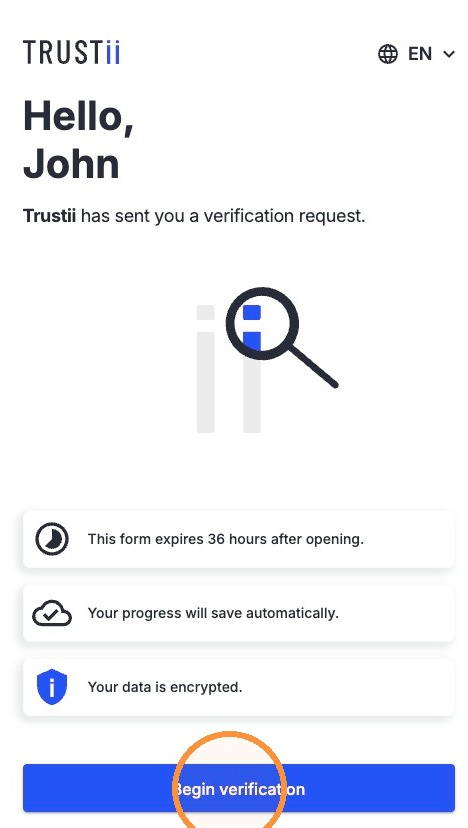
2. Click Begin verification.
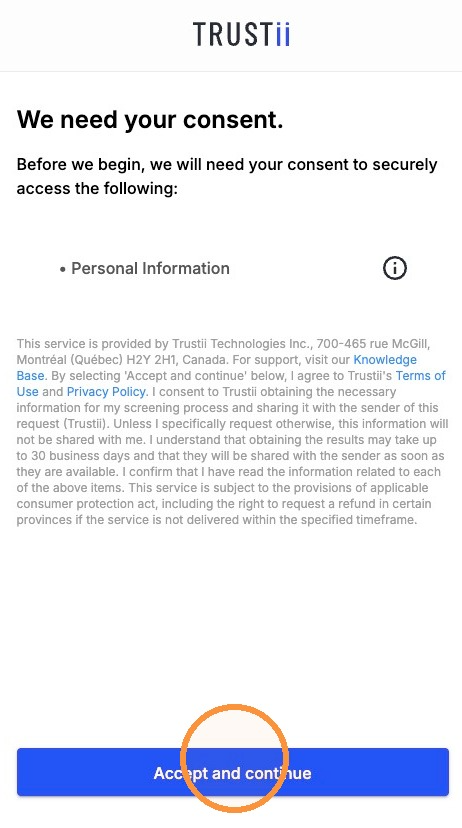
3. Read the message displayed, then click Accept and continue.
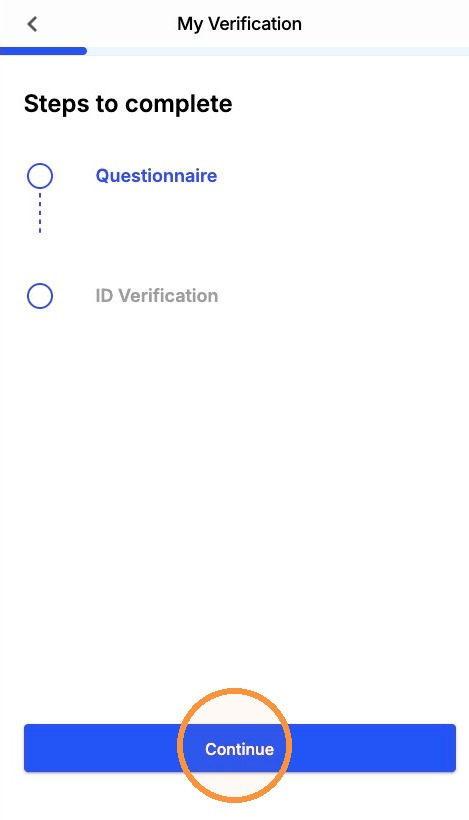
4. Review the steps to complete, then click Continue.
Complete the Questionnaire
The questionnaire collects your contact information, personal details, address history, and driver's license information.
Contact and Personal Information
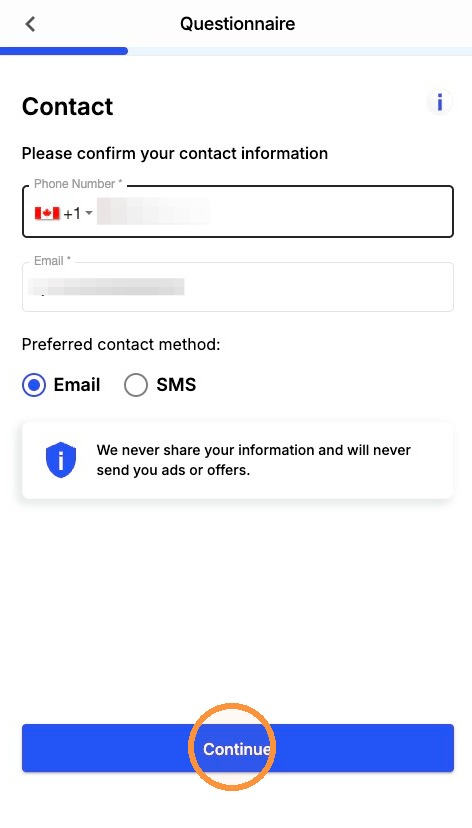
5. Enter your phone number and email and select your preferred contact method. Click Continue.
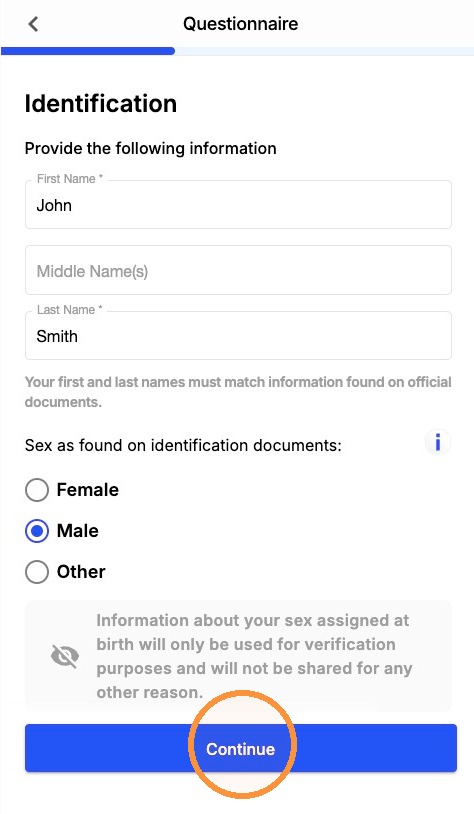
6. Enter your first, middle, and last name, and sex as they appear on your official documents. Click Continue.
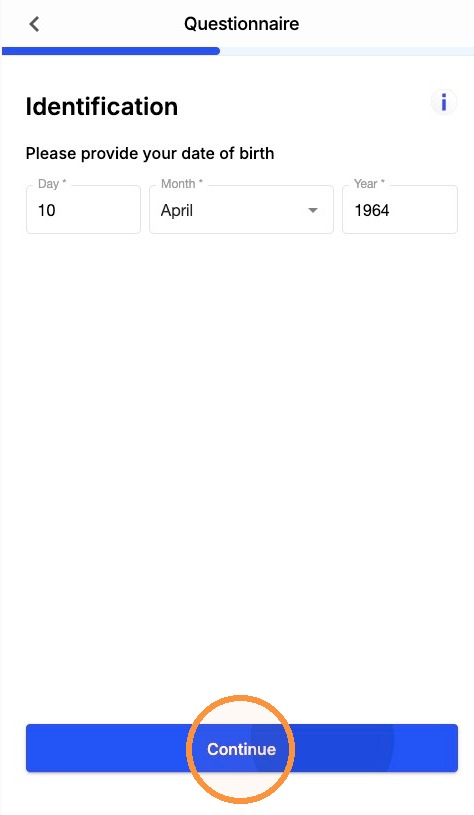
7. Enter your date of birth. Click Continue.
Address History
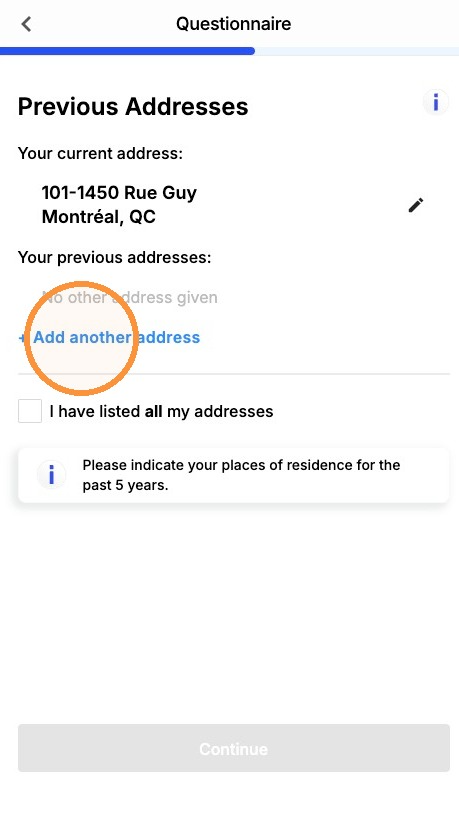
Address history must be provided for the past 5 years.
8. Search for your address and select it from the dropdown. Enter your apartment or unit number, if applicable, then click Confirm Address.
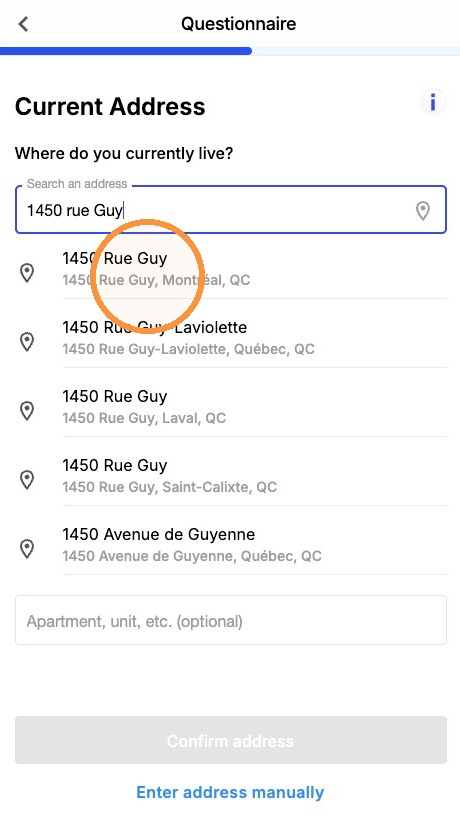
Note: If your address doesn't appear in the search results, click Enter Address Manually at the bottom of the page and complete the fields provided.
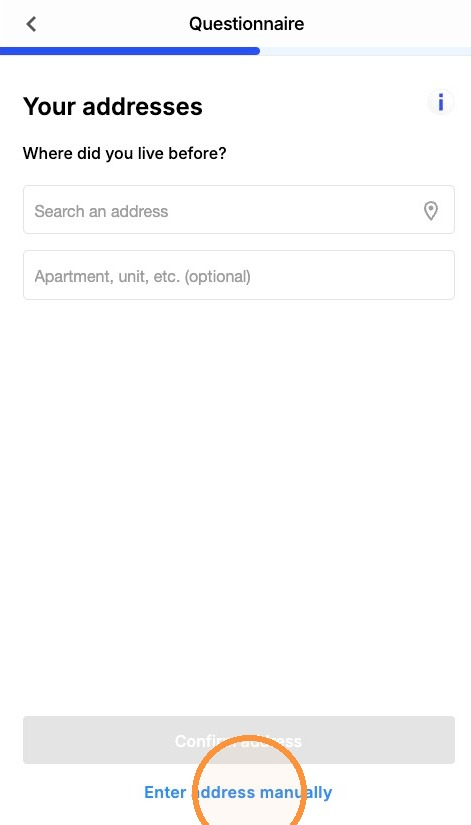
9. If you've lived at more than one address in the past 5 years, click + Add Another Address and repeat the steps above for each additional address.
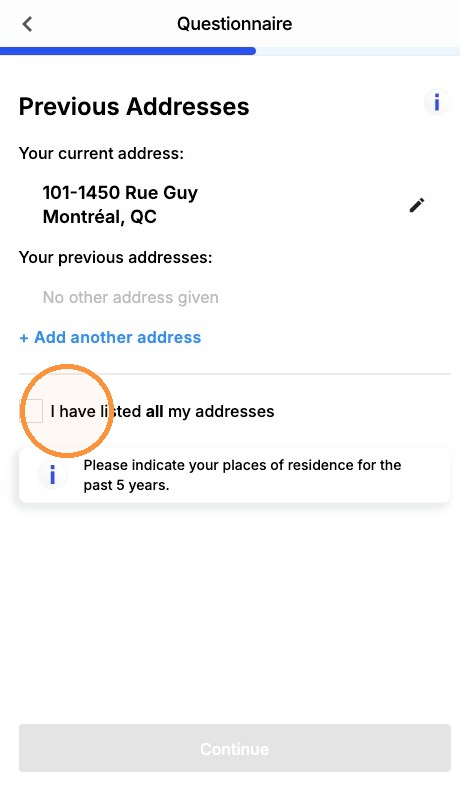
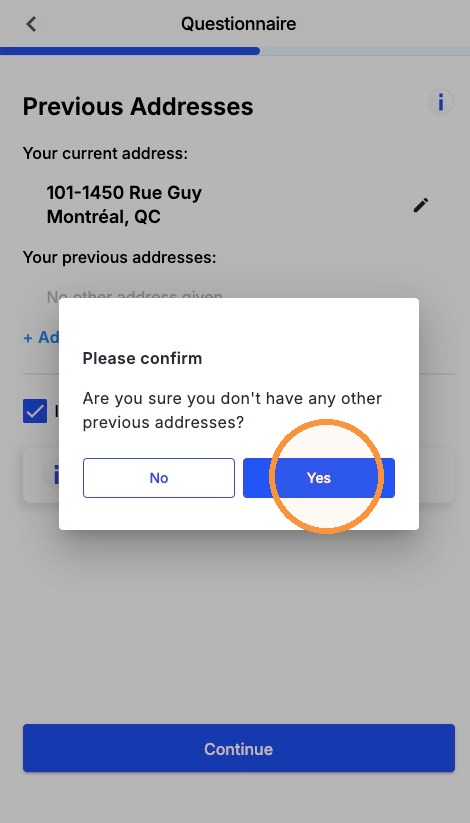
10. Once all addresses for the past 5 years have been entered, click I Have Listed All My Addresses, then click Continue.
11. Click Yes to confirm that you have entered all your addresses for the past 5 years.
Driver's License Validation
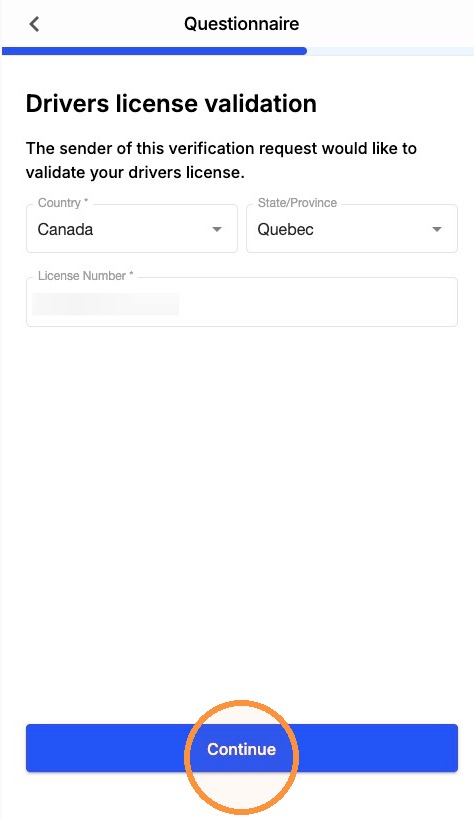
12. Enter the country, province or state, and license number, then click Continue.
13. Read the disclaimer and sign in the signature box to consent to Trustii obtaining your driving record on behalf of your organization. Click Continue.
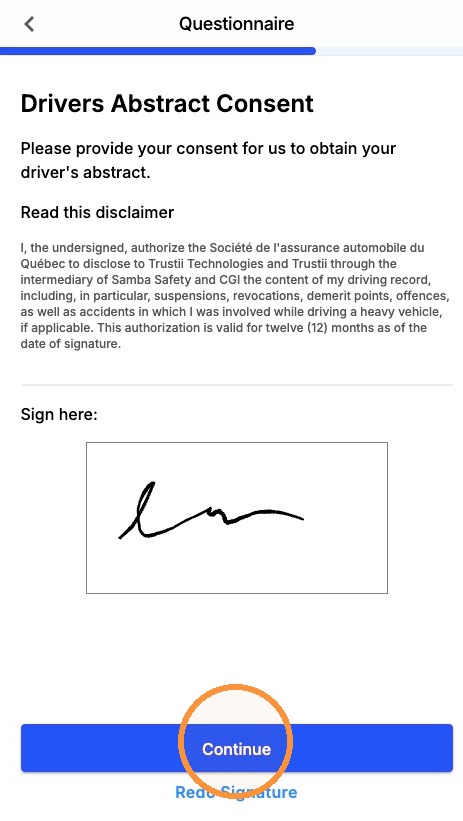
The Questionnaire portion is now complete. Click Continue to move on to the ID Verification.
Complete your ID Verification
ID verification confirms that you're the legitimate holder of the identity information you've provided, using a government-issued ID and a live photo match. This step runs before any other verification, so results are anchored to a confirmed individual.
Accepted ID types
- Driver's license
- Health insurance card
- Passport
- NEXUS card
- Permanent resident card
- National identity card
- Tribal identity card
Capture tips
Here are a few tips to help you capture a clear photo of your ID:
- Avoid backlighting from windows or bright light sources.
- If the ID is blurry, slowly move it toward the camera until the image is in focus.
- Make sure the entire ID is visible and contained within the four corners of the frame.
14. Click Begin verifying.
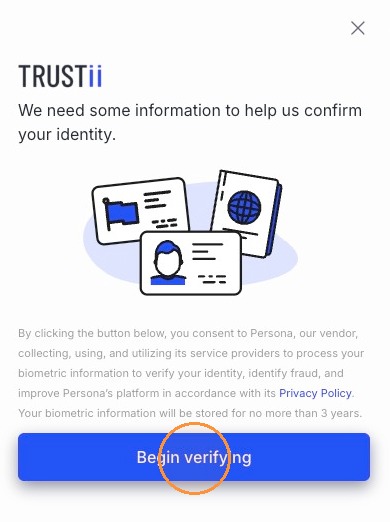
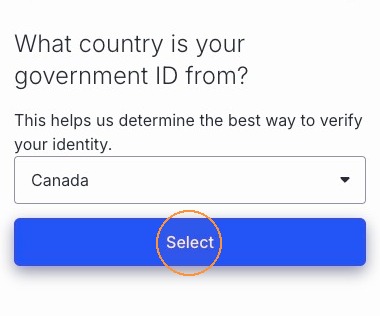
15. Select the country your government ID is from, then click Select.
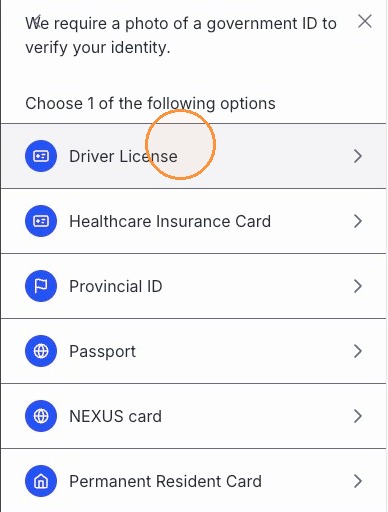
16. Select the ID type you'll use to verify your identity.
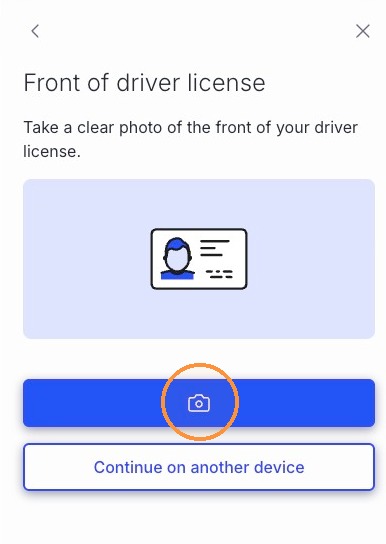
17. Click the camera icon to open your camera, or select Continue on Another Device to take the photo from another device and link it back to this verification.
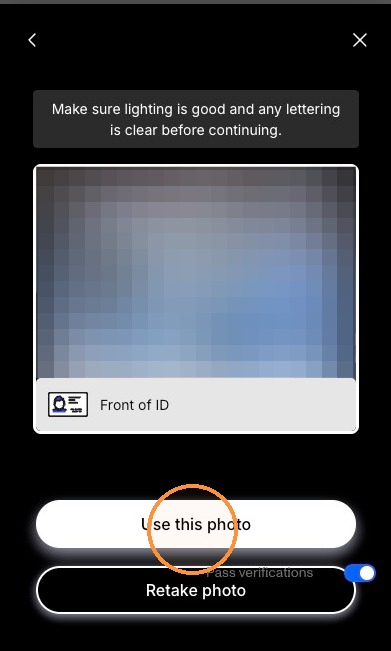
18. Take a photo of the front of your ID. Make sure all information is legible and the four corners are visible in the frame, then click Use This Photo. If the photo doesn't meet these requirements, click Retake Photo and try again.
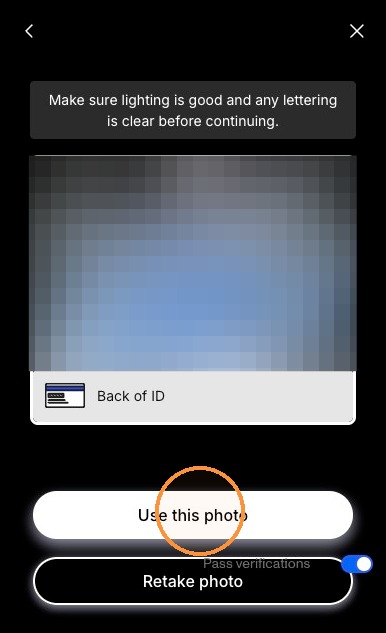
19. Take a photo of the back of your ID. Make sure all fields are legible and the four corners are visible in the frame, then click Use This Photo. If the photo doesn't meet these requirements, click Retake Photo and try again.
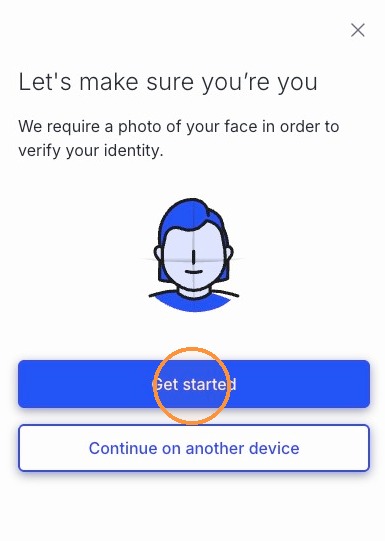
20. To complete the ID verification, you'll need to provide a photo of your face to confirm it matches the one on your ID. Click Get Started and follow the on-screen instructions.
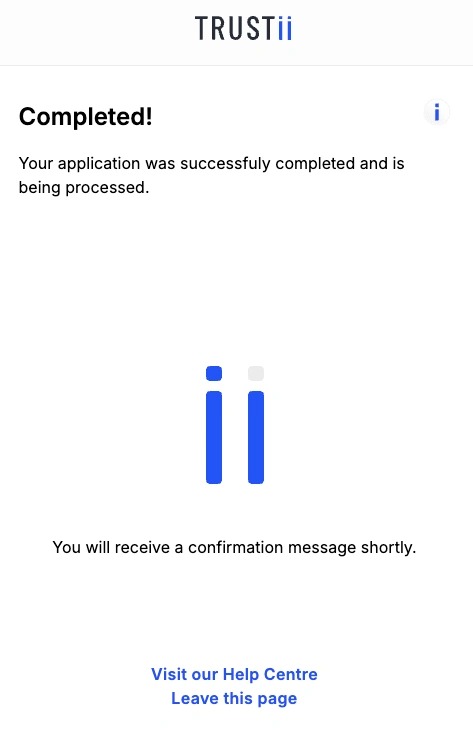
Your application is now successfully completed. If any additional steps are required, your organization will contact you directly.
Was this article helpful?
That’s Great!
Thank you for your feedback
Sorry! We couldn't be helpful
Thank you for your feedback
Feedback sent
We appreciate your effort and will try to fix the article