Verif lets you organize your account into teams, so each group can manage its own verification requests.
Members of a team can access that team's verifications. Verifications from other teams stay confidential. You can create teams for different needs, such as specific projects or geographic regions.
TABLE OF CONTENTS
Create a team
Teams are created by the Trustii Support team. To request one or more teams, email support@trustii.co with the number of teams you need and a name for each.
Note: If you request more than five teams, they will be numbered at first. You can rename them later from the platform.
Invite a team member
To join a team that already exists on Trustii, ask one of the admin members on the team to send your invitation from the platform.
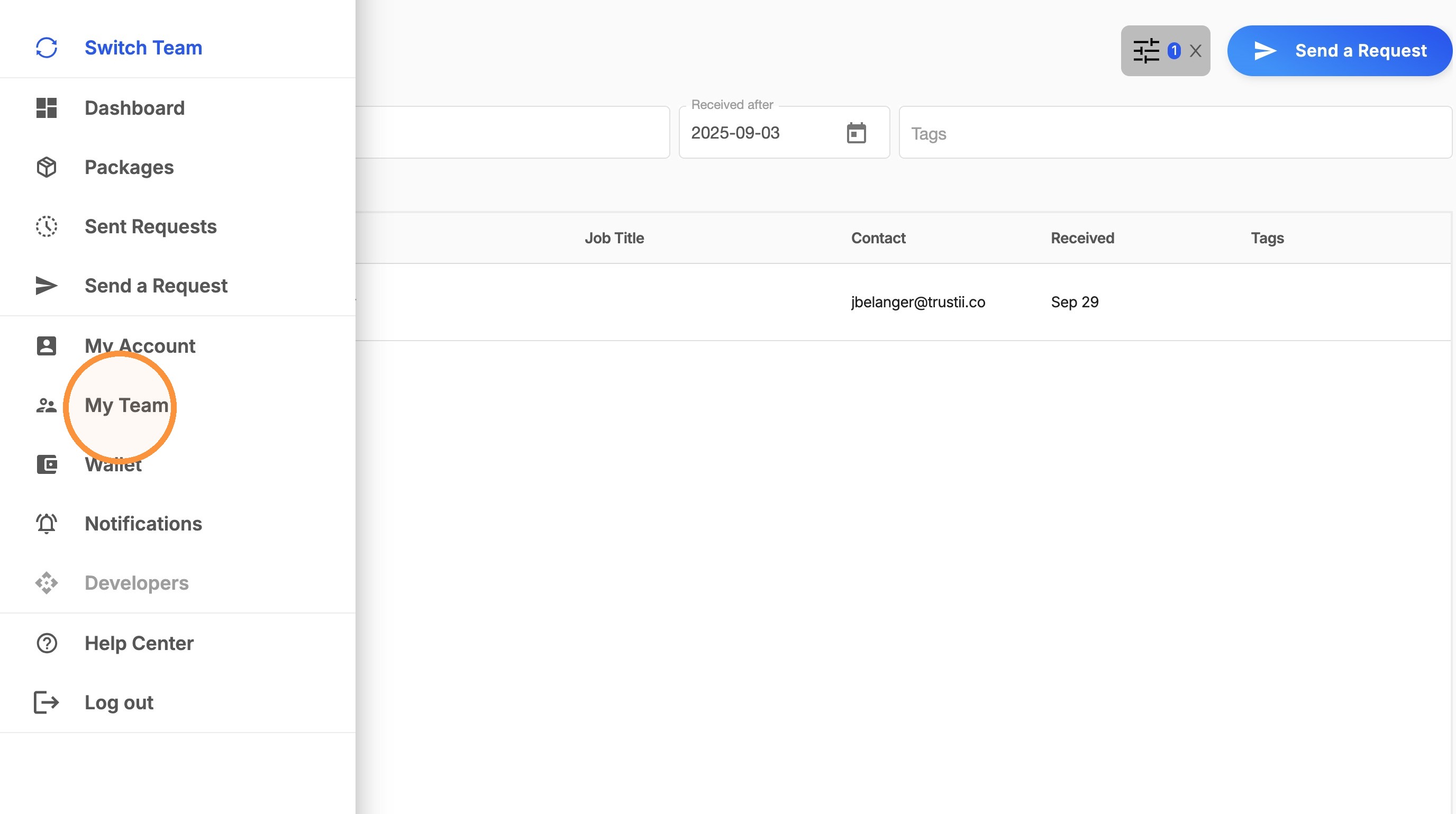
1. From the left hand side menu, click My Team.
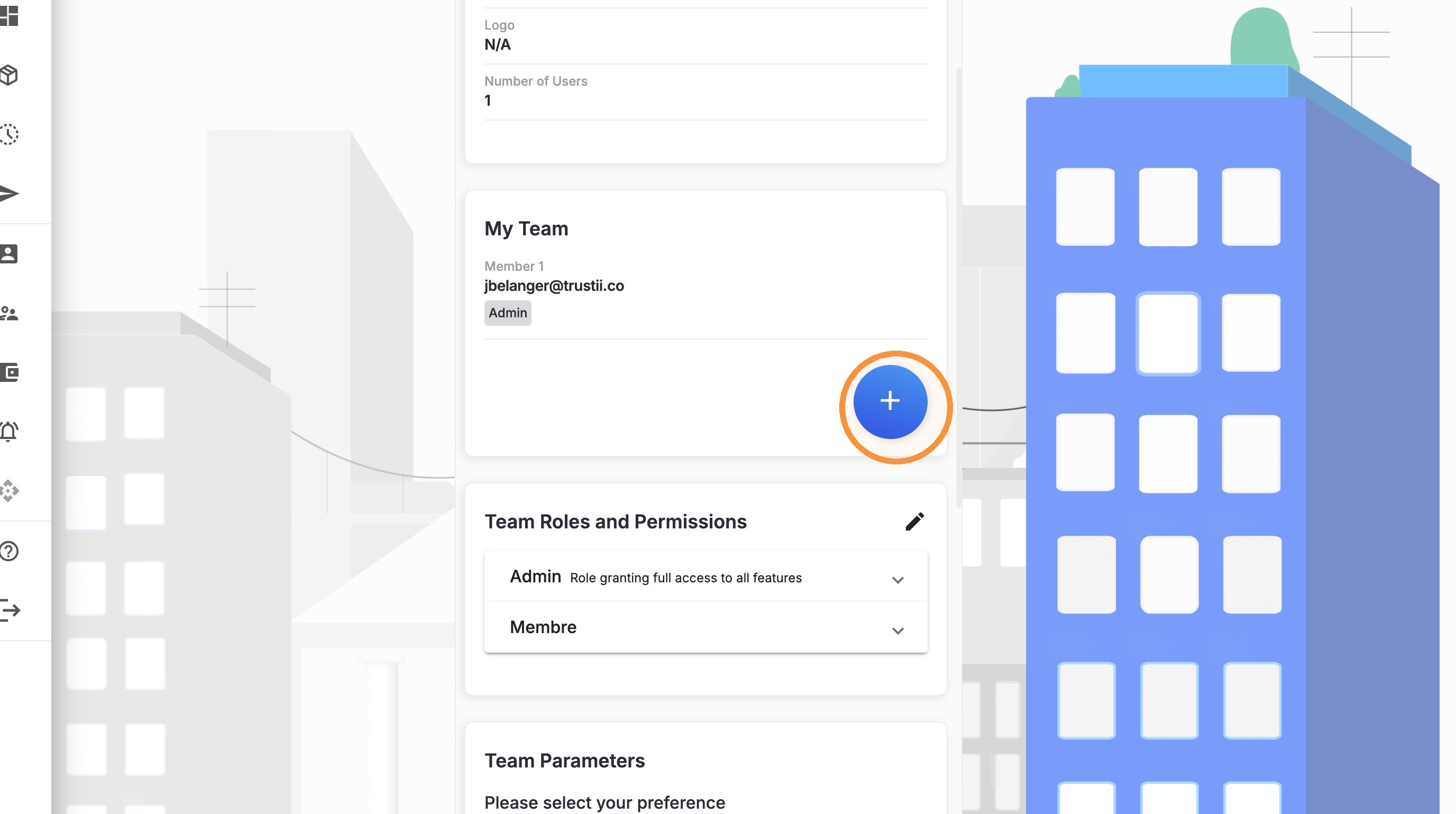
2. Scroll down to the My Team section and click on the + icon.
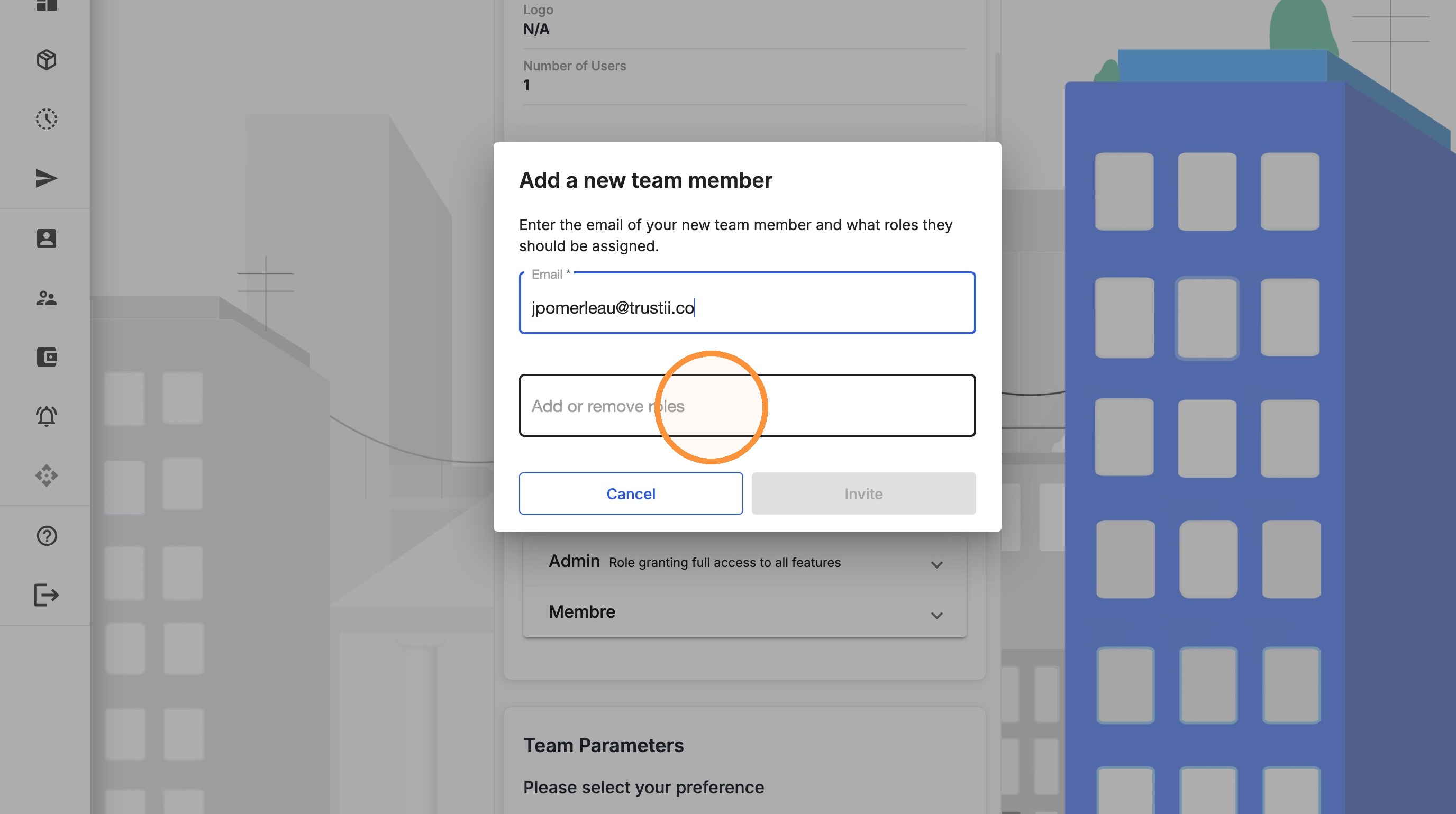
3. Enter the new member's email address.
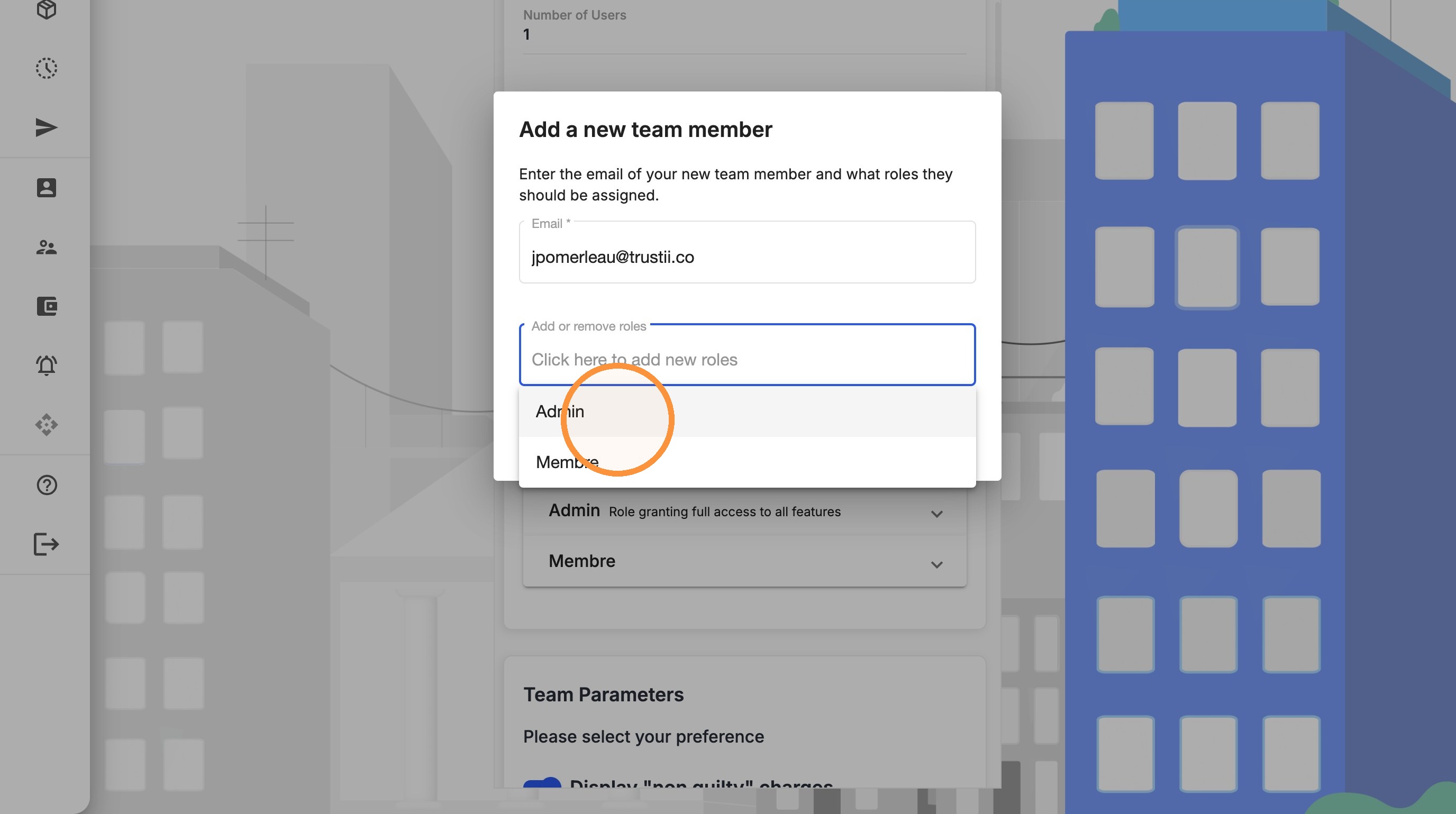
4. Select their role.
5. Click Invite.
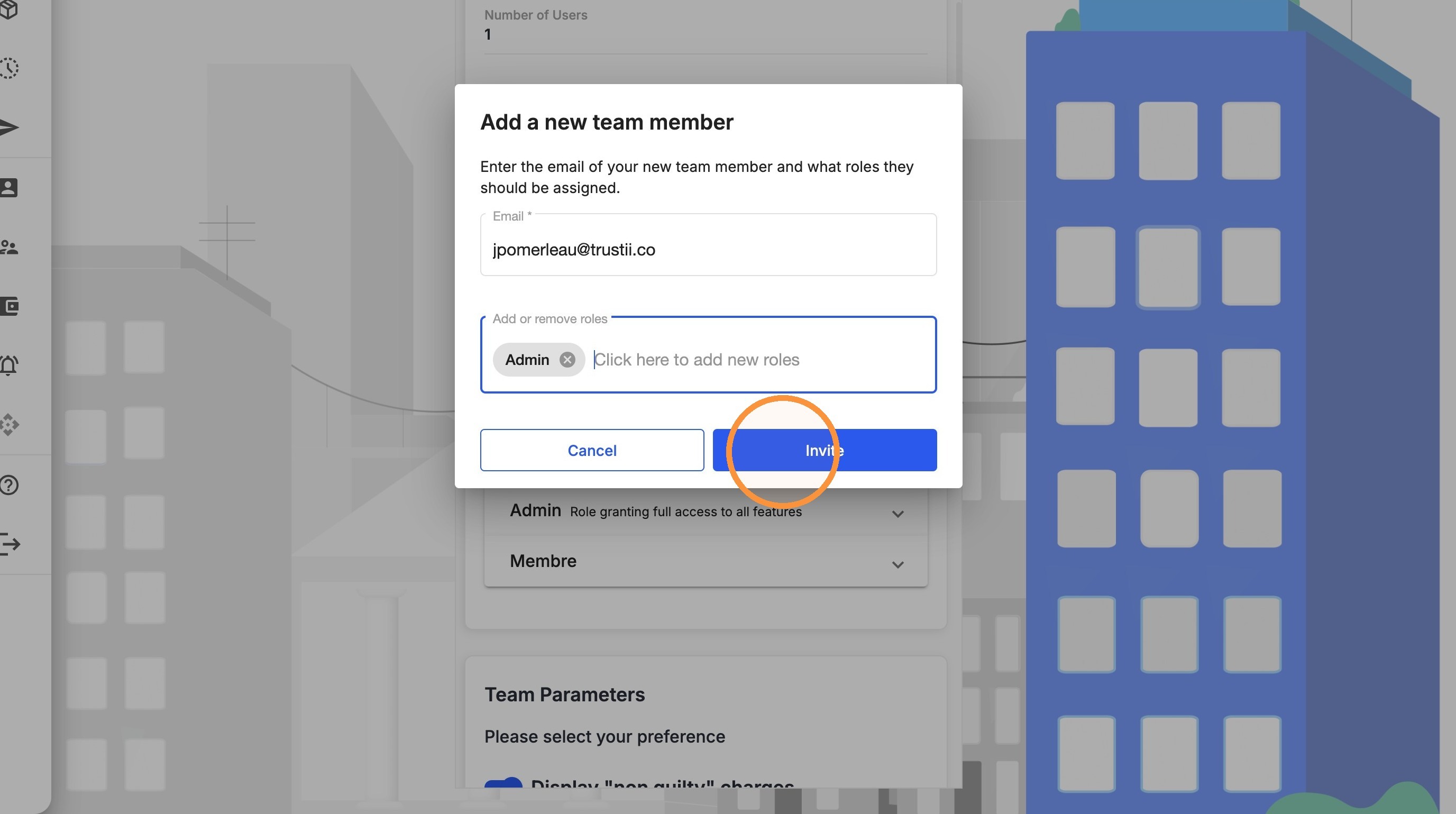
Verif emails the invitation automatically. The new member must accept the invitation and Sign Up before they can access the team.
Remove team members
Follow these steps to remove someone from your team.
1. From the left-hand menu, click My Team.
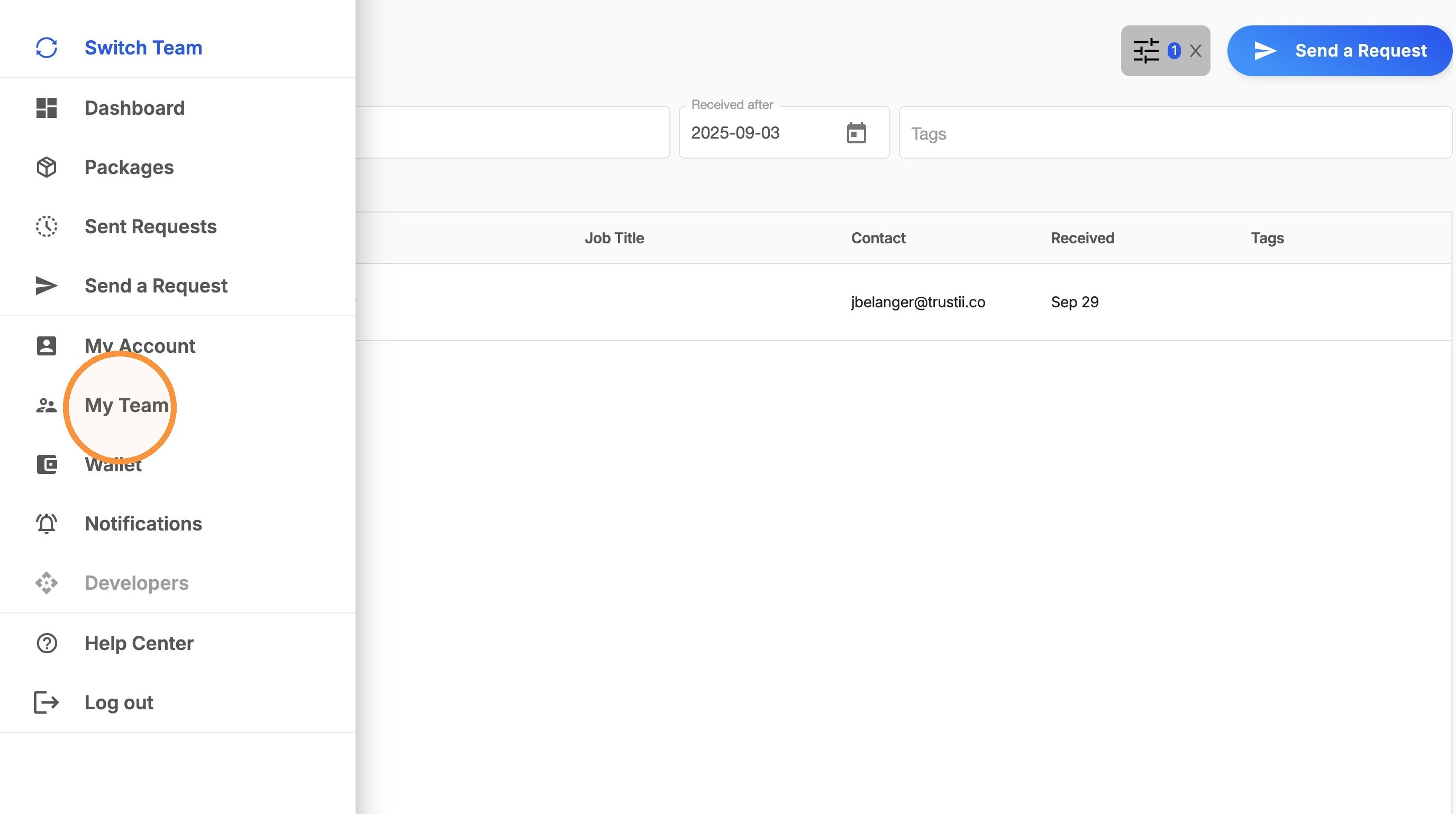
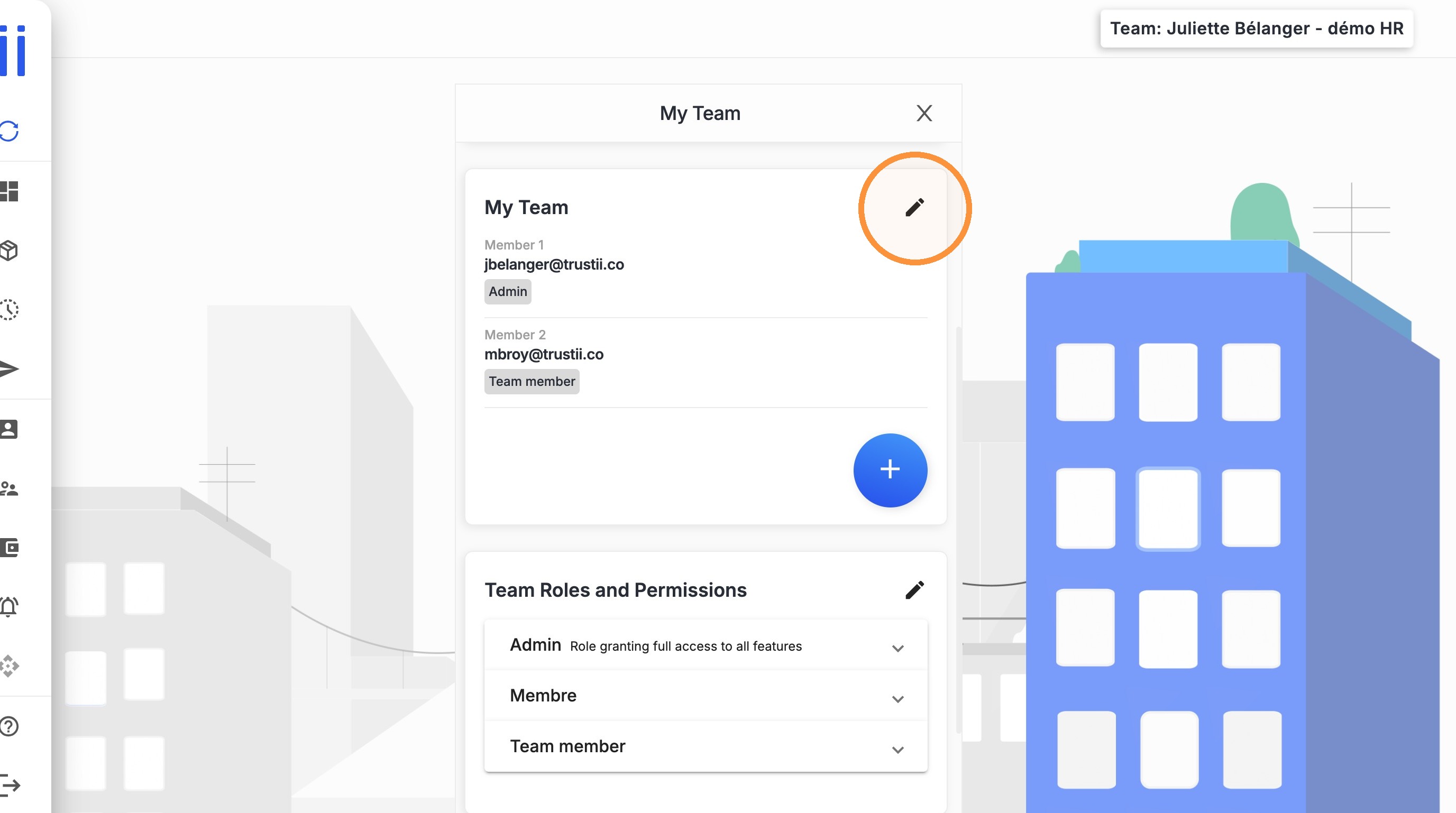
2. Click the pencil icon next to My Team.
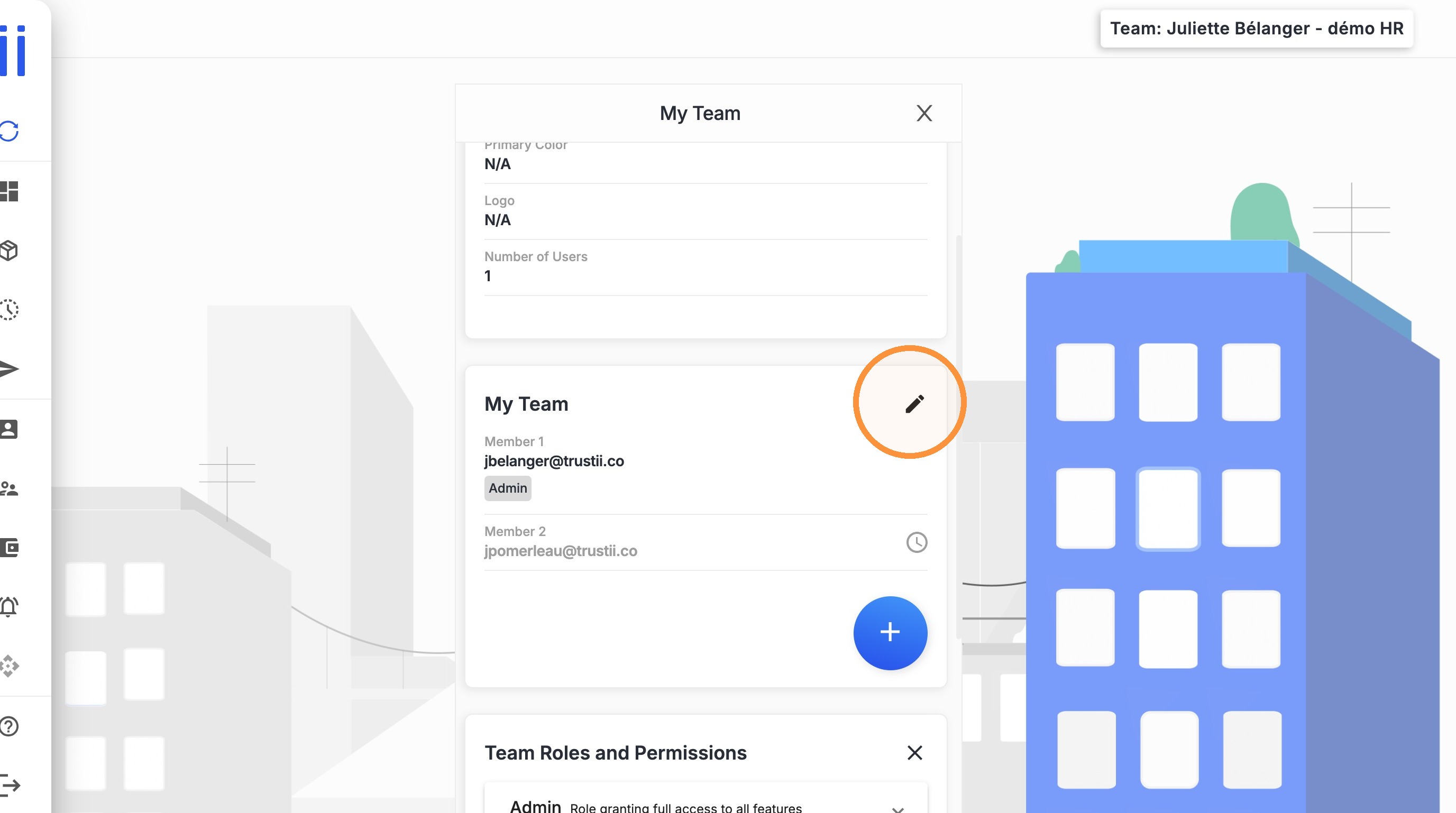
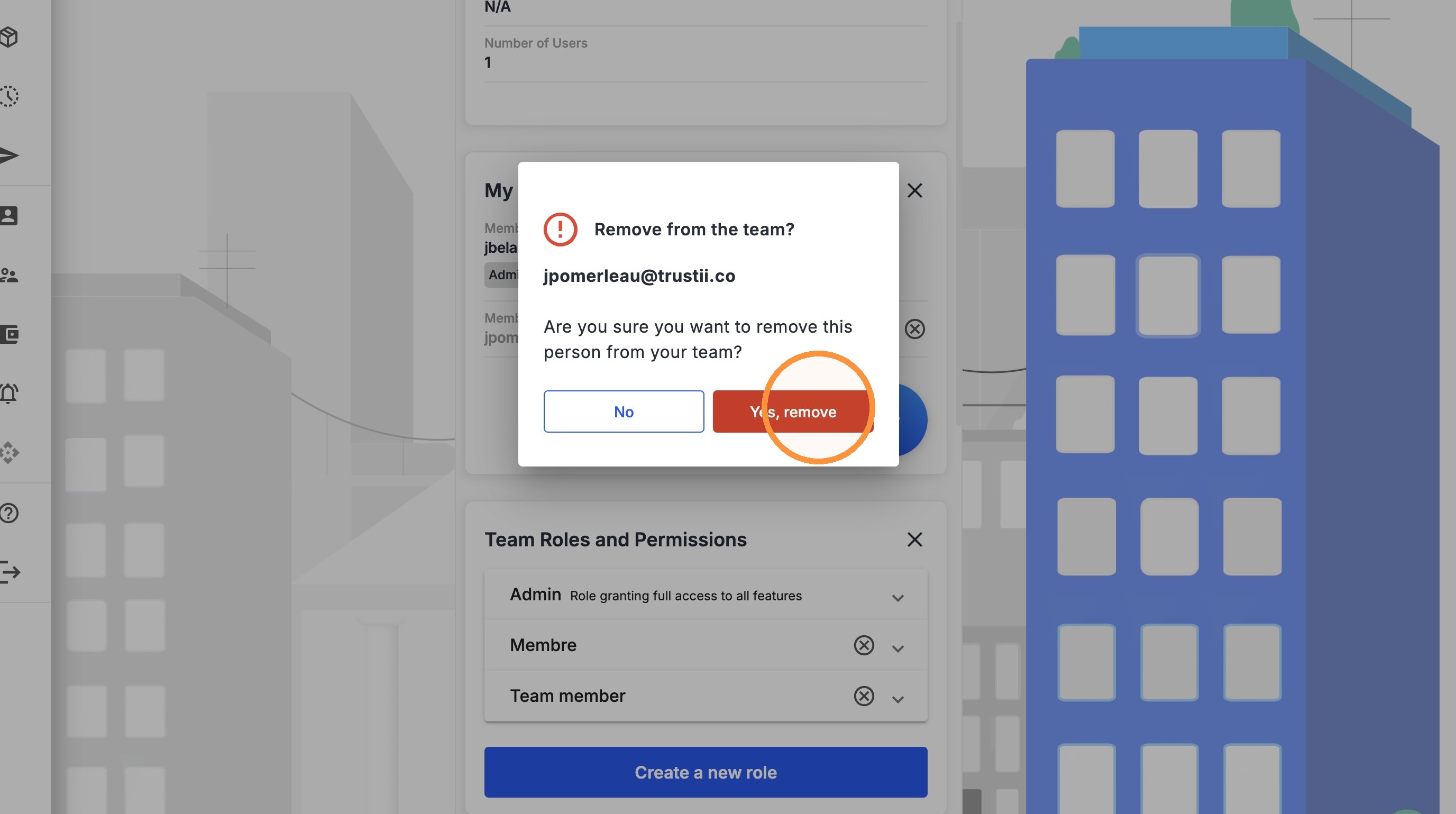
3. Click the x to the right of the member's name.
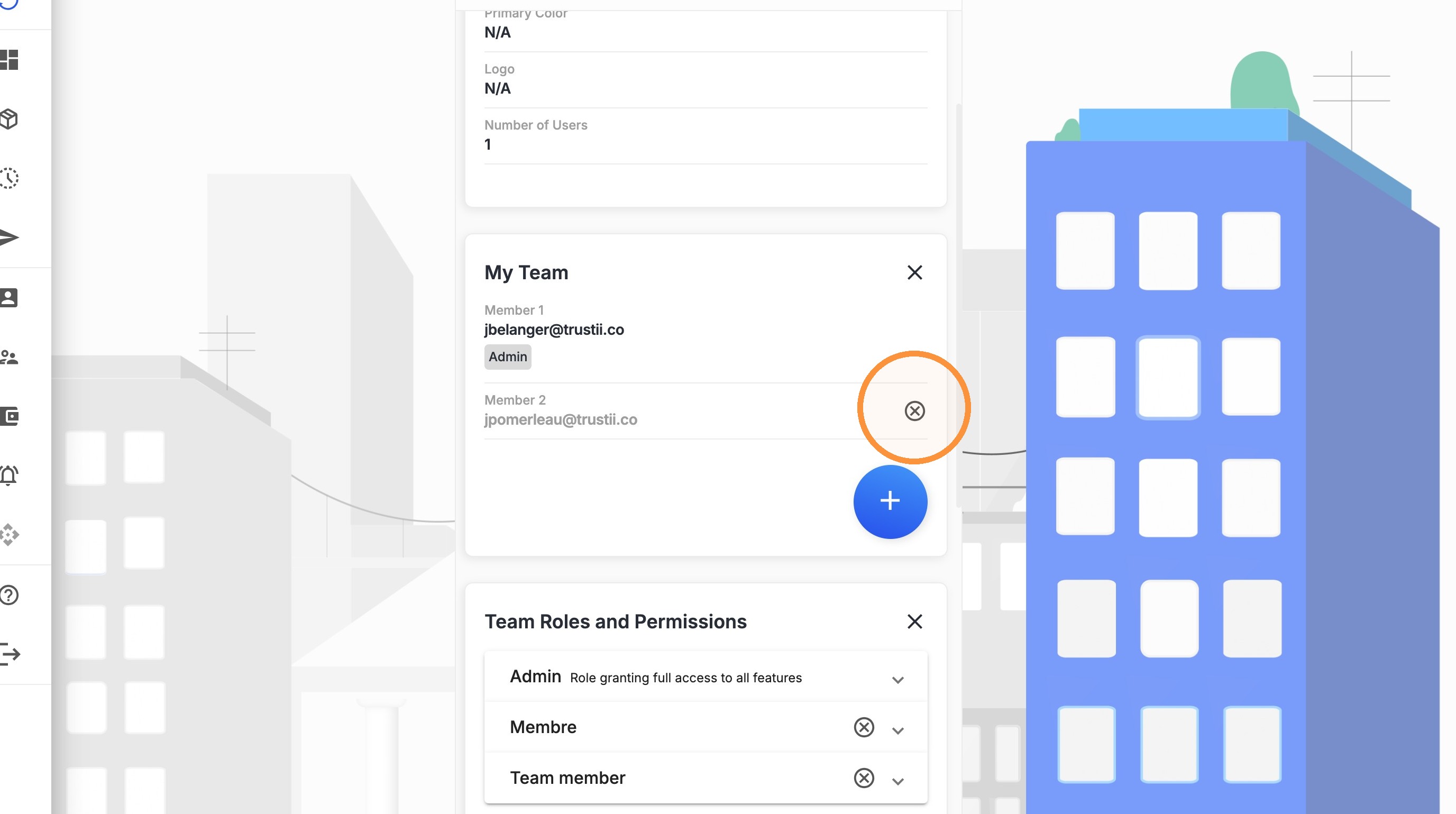
4. Click Yes, remove.
Change a team member's role
Follow these steps to update a member's role.
1. From the left-hand menu, click My Team.
2. Click the pencil icon next to My Team.
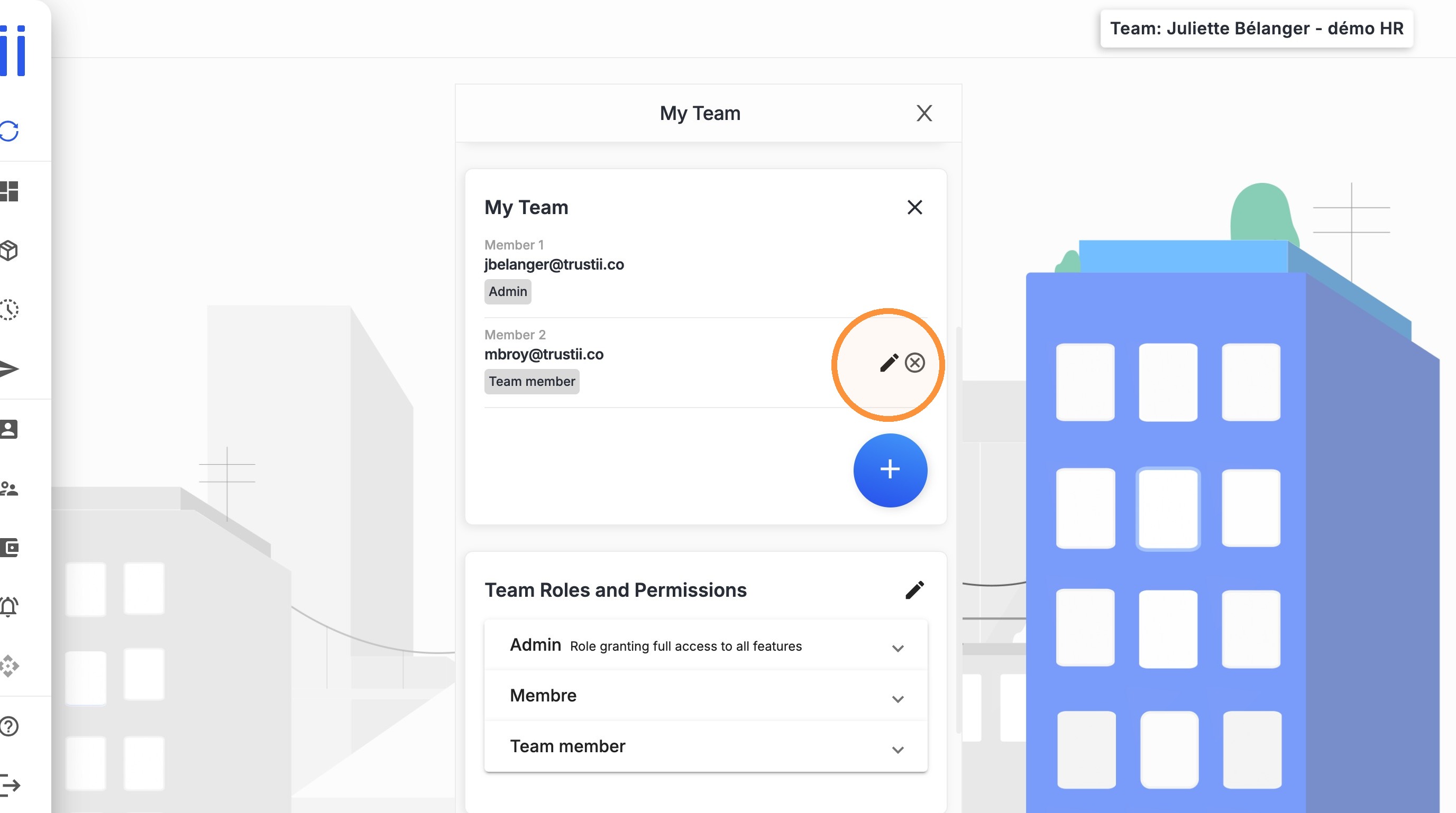
3. Click the pencil icon next to the member's name.
4. To remove a role, click the x next to the role.
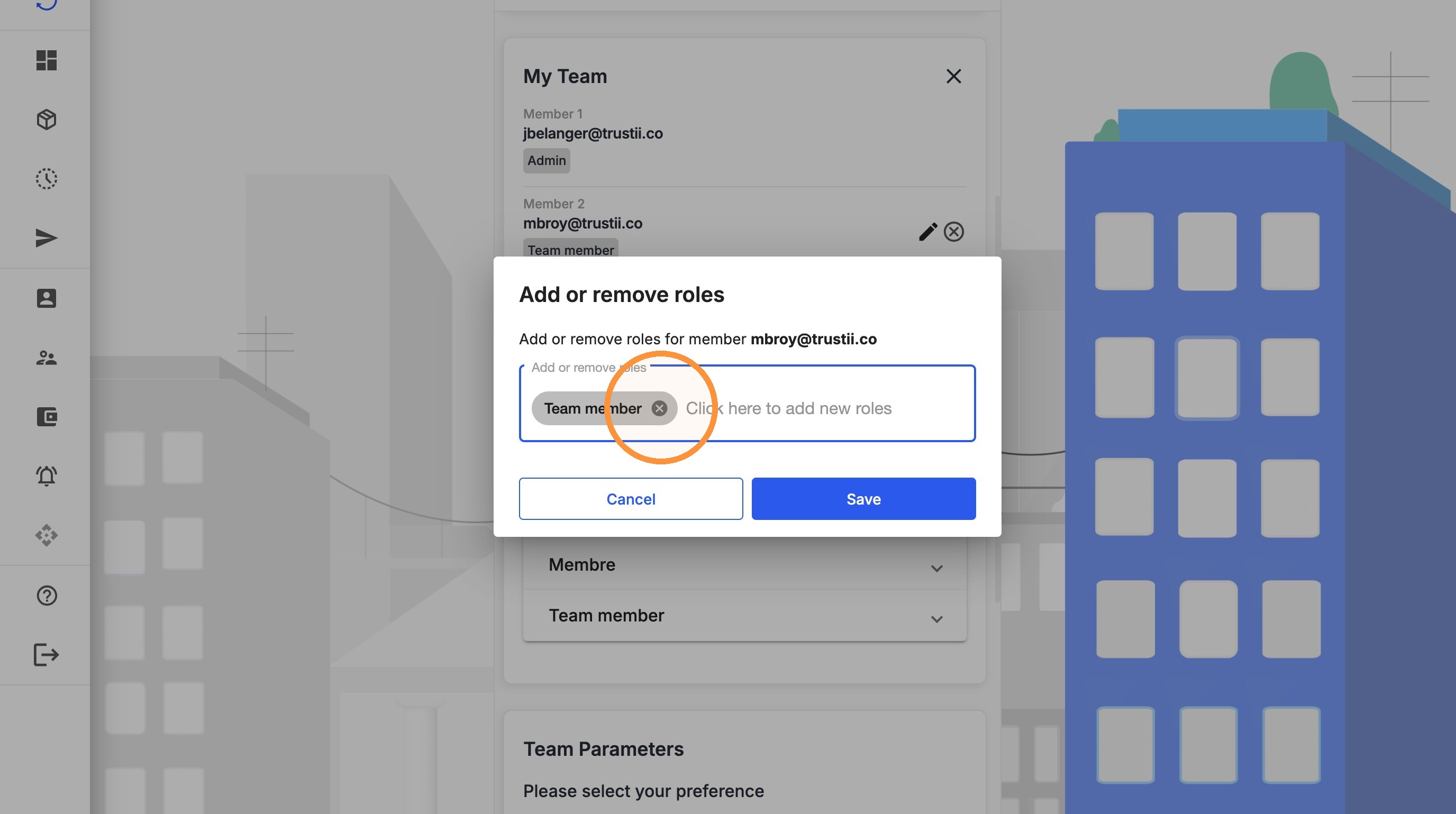
5. Select the member's new role.
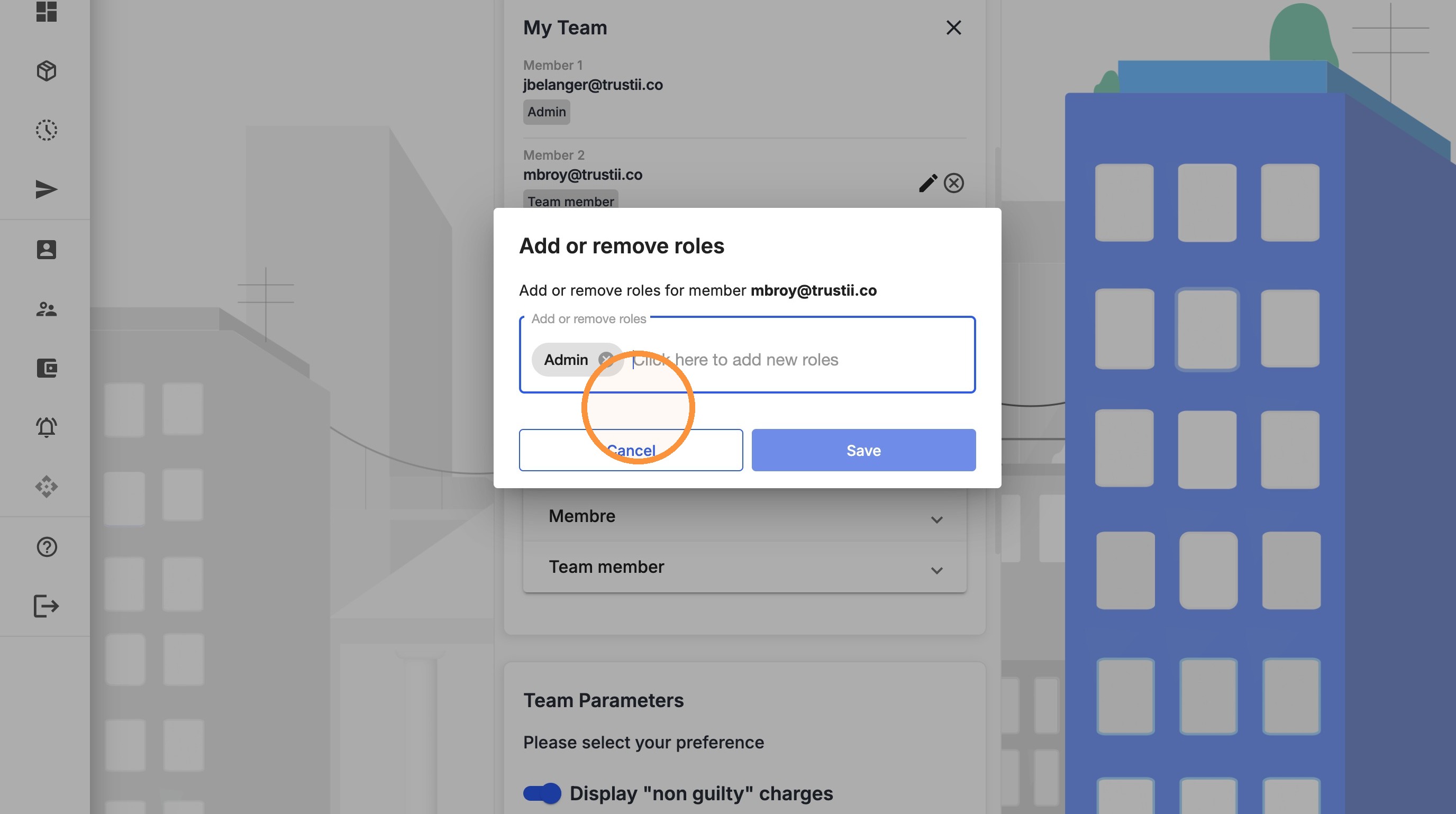
6. Click Save.
Was this article helpful?
That’s Great!
Thank you for your feedback
Sorry! We couldn't be helpful
Thank you for your feedback
Feedback sent
We appreciate your effort and will try to fix the article